Intergrating Cookie Control with the Wix CMS Platform
06 August 2025
Wix allows developers to insert custom code snippets for site-wide functionality. This makes it easy to add Civic Cookie Control and stay compliant with cookie laws


How to add Cookie Control with Wix CMS Platform
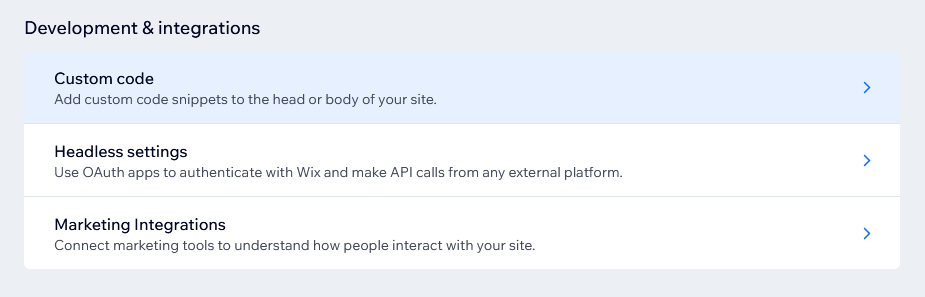
Step 1: Go to Custom Code settings
- In the Wix dashboard, click Settings

- Under Development & Integration , select Custom Code
Step 2: Add Cookie Control
- Click Add Custom Code
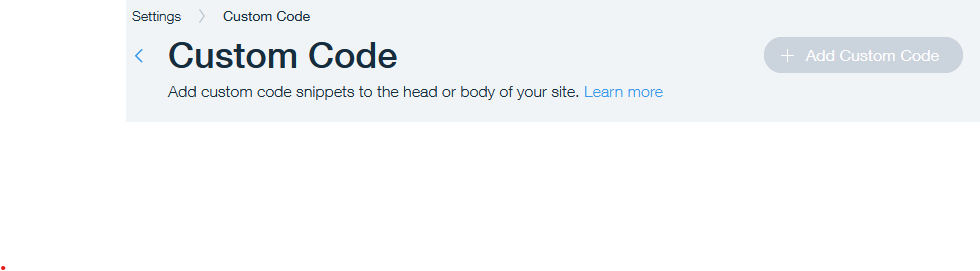
- Paste the following script within the code snippet:
 <!-- Latest Stable Version of Cookie Control core script -->
<script src="https://cc.cdn.civiccomputing.com/9/cookieControl-9.x.min.js" type="text/javascript"></script>
<!-- Cookie Control configuration --> <script> var config = { apiKey: 'xxxxxxxxxxxxxxxxxxxxxxxxxxxxxxxxxxxxxxxx', product: 'XXX' }; CookieControl.load(config); </script>
- Replace 'xxxxxxxxxxxx...' and 'xxx' with your licences API key and product type
- Set Add Code to Pages to All pages.
- Choose Body-end for Place Code in.
- Set Code Type to Functional.
- Click Apply
Step 3: Save and verify
- Save your settings
- Preview your site to confirm the cookie banner is functioning as intended.
Need help?
For full documentation on all configuration options, visit our documentation: Cookie Control Available Options
If you encounter any issues or need support, please contact us via our help page: Cookie Control Support