What a Cookie Scanner Can and Cannot Find
No scanner finds every cookie. What automated scanning misses and why, and the manual checks that close the gap — from the people who run one.
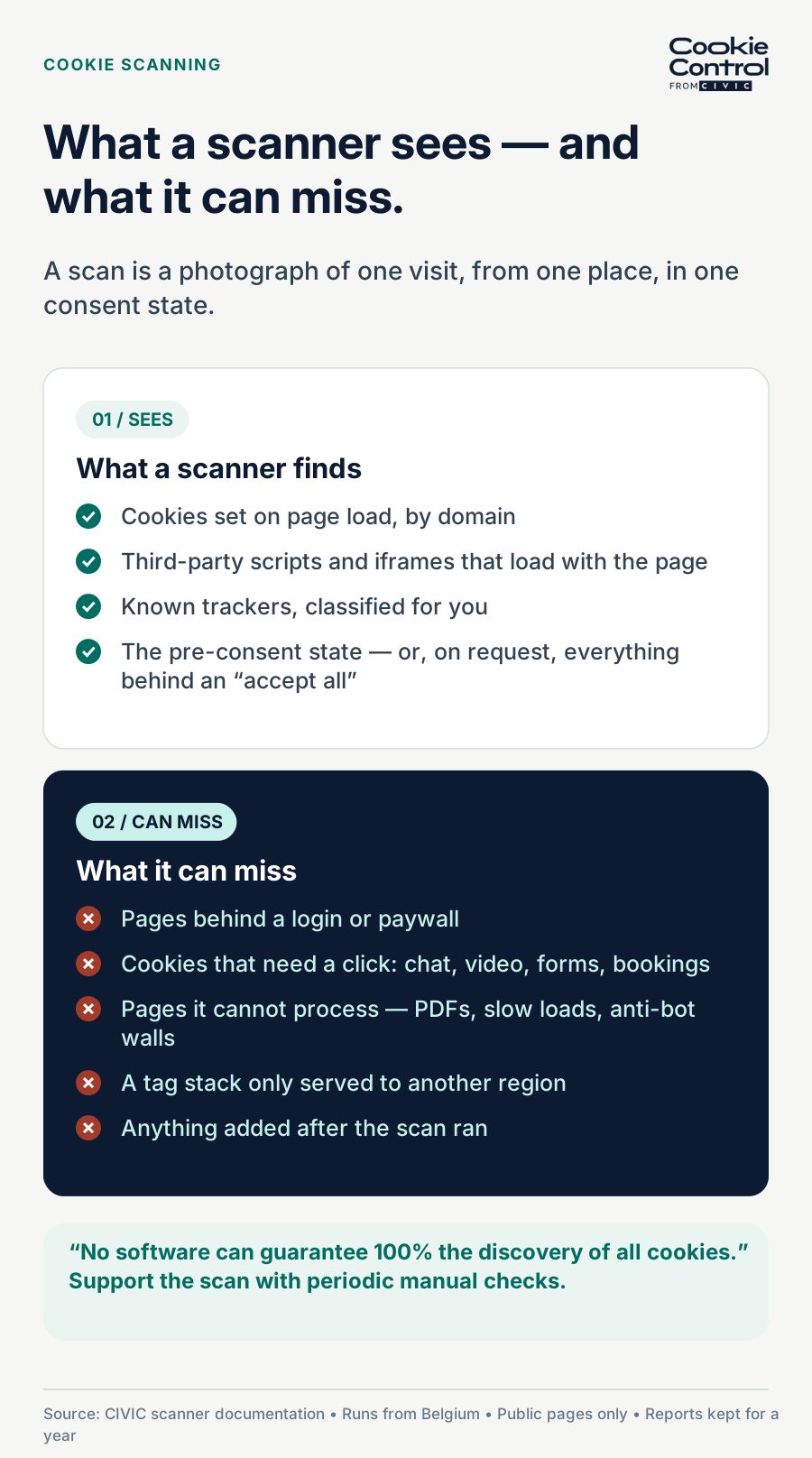
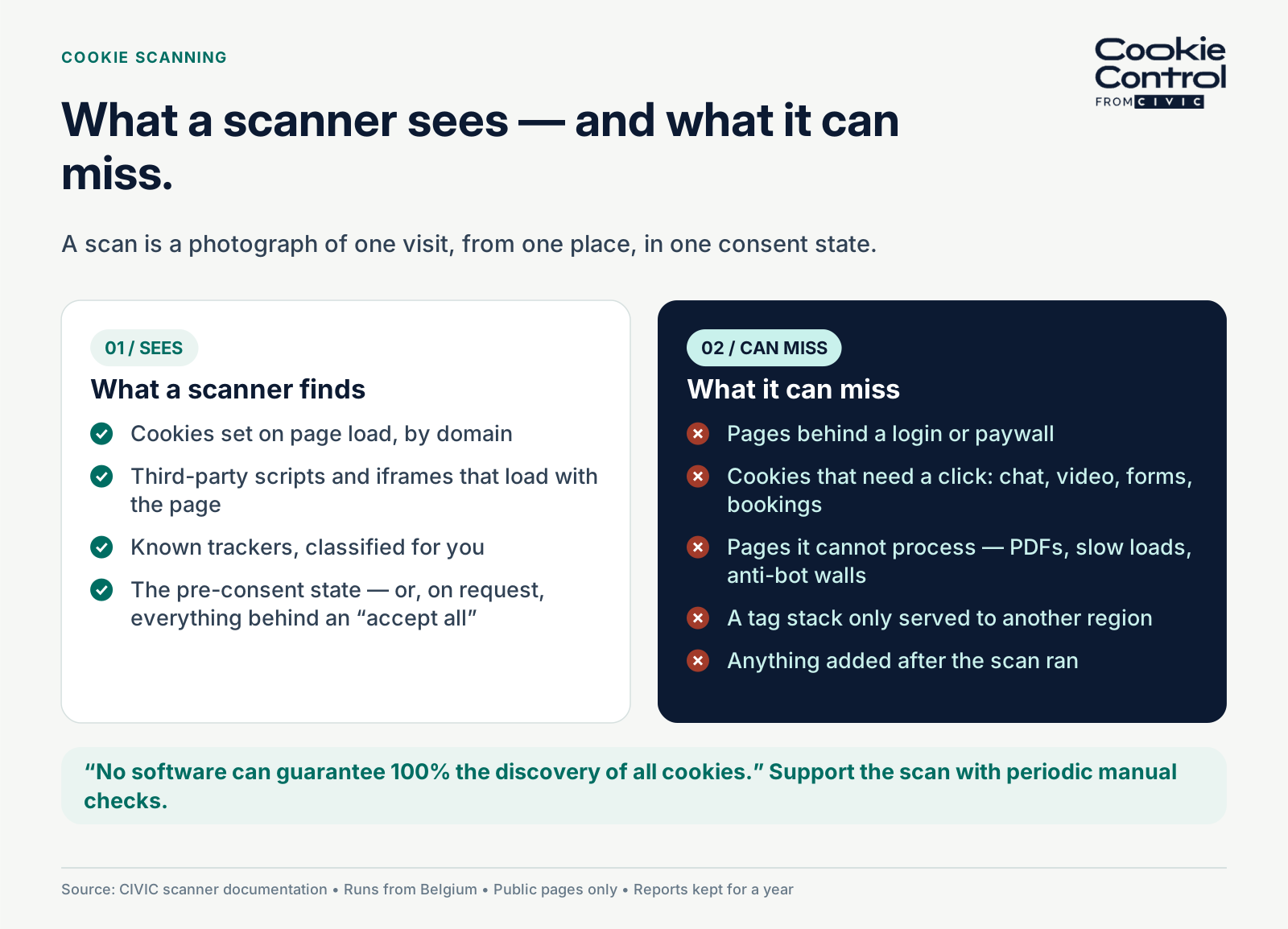
What a cookie scanner can detect versus what it can miss.
Automated scanners find cookies set on the pages they can reach, in the conditions they encounter. They miss cookies behind logins, cookies triggered by user actions, and sites that block automated access. No scanner can guarantee it found everything, which is why periodic manual checks still matter.
Most cookie scanner marketing implies completeness. Run the scan, get the list, you are done. It is a comfortable message and it is not quite true — for any scanner, including ours.
Here is what automated scanning actually does, where it stops, and what to do about the gap. If a scan report is part of your compliance evidence, you should understand both what it shows and what it can't.
How a cookie scanner works
A scanner sees your site the way a visitor would if they never clicked, scrolled or logged in. It loads your page in a headless browser, lets the scripts run, and records what ends up in cookie storage — plus the third-party scripts and iframes that loaded along the way. So a scan shows what a visitor would see, but only under the conditions of that visit. Change the conditions (location, device, consent choice, logged-in state) and you change the findings. Each cookie it finds is then classified as first-party or third-party by the domain that set it. That classification is the first thing to check in any report.
Where the scan runs from, and why that matters
Our scanner runs on machines physically located in Belgium, so, as our scanner documentation puts it, we expect URLs to behave as they would for any user accessing them from that location.
This is not a detail. It is the reason scan results can differ from what you see at your desk. If your site serves different content, different consent behaviour or different ad tech by region, the scan reflects an EU visitor's experience. For a UK or EU-facing site that is usually what you want to audit. If you serve a US-specific tag stack, the scan will not show it, and you will need to check that separately.
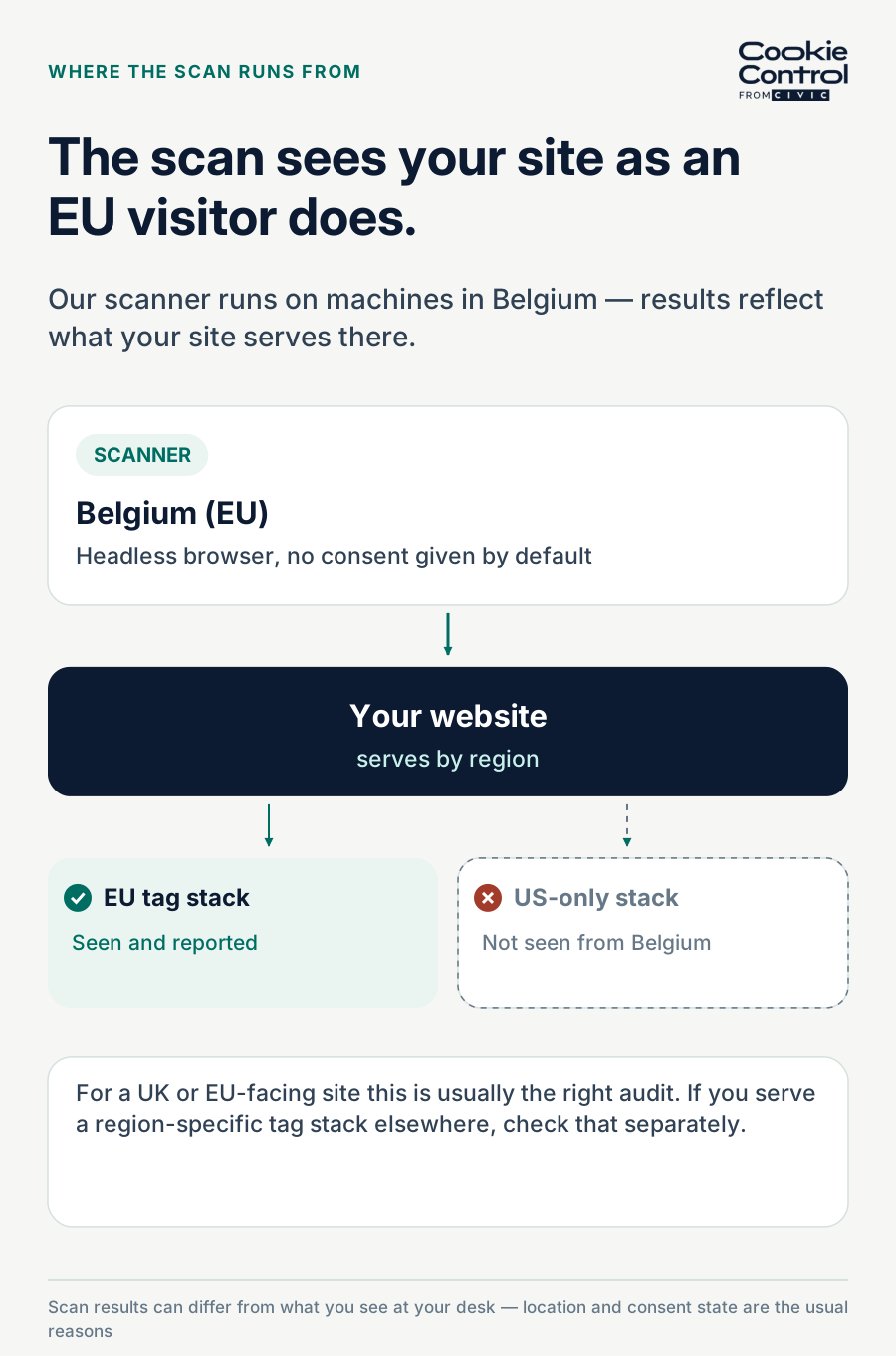
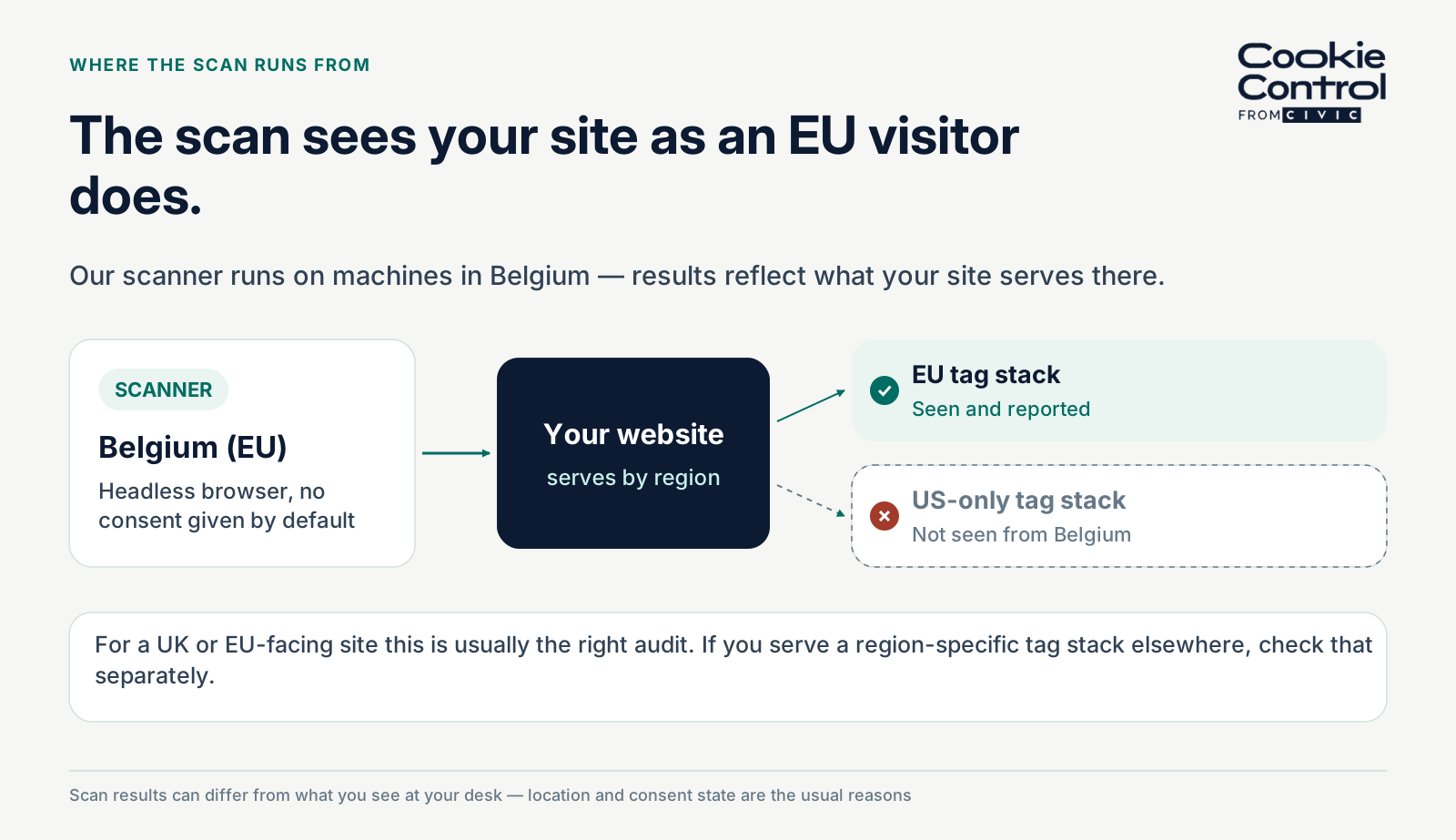
How scan location changes which cookies and trackers a website sets.
What a scan will not find
Five categories, in rough order of how often they catch people out.
Pages behind a login. Scans cover the public pages of your website, not the ones with authorised access. If your logged-in area sets analytics or personalisation cookies — and most do — no public scan will see them. This is the biggest blind spot for anyone running a portal, an intranet or an e-commerce account area.
Cookies that need an interaction. A scanner loads the page; it does not use it the way a person does. It will not click your chat widget, start your video, submit your form or open your booking flow. Cookies that only appear after one of those actions will not show up.
Pages the scanner cannot process. A scan may fail to process URLs entirely if they take too long to load, if they are files such as PDFs, or if advanced anti-bot techniques such as TLS fingerprinting are in place to block automated access. Ironically, the better your bot protection, the harder your site is to audit.
The post-consent surface, unless you ask for it. A standard scan sees your site as a visitor who has not consented. If your blocking is working, that is a deliberately short list. The cookies you actually need to declare are the ones that appear after someone accepts, which is why scanning behind Cookie Control — where the scanner imitates a user accepting all optional categories — gives you the list your cookie policy has to describe.
Anything that changed after the scan. A scan is a photograph. A tag added on Tuesday does not appear in Monday's report.
Our own position on this
We put it plainly in our documentation: no software can guarantee 100% the discovery of all cookies. It is therefore recommended to periodically support automated scans by using your browser's console and double-checking manually.
We would rather say that than let anyone treat a scan report as a compliance certificate. A scan is a very good starting inventory, produced in minutes instead of days. It is not a guarantee, and any vendor implying otherwise is selling you a comfortable idea rather than an accurate one. The same honesty applies to the cookies a scan does find: some of them, once set by another domain, cannot be deleted by any consent platform, and a report is only useful if you know that too.
How to check manually
The manual check is less painful than it sounds, and you only need to do it on a handful of representative pages. Our documentation walks through how to check cookies manually; the short version is this.
- Open the page in a private browsing window so you start clean.
- Open your browser's developer tools and find the storage or application panel, where cookies are listed by domain.
- Load the page without consenting and note what is already set. Anything beyond strictly necessary here is a problem worth fixing.
- Accept all categories and reload. Note everything that appears — this is your full declaration list.
- Now use the page as a visitor would: play the video, open the chat, start the form. Re-check after each.
- Repeat on one page per template — home, article, product, checkout, and one logged-in page if you have one.
Compare that against your scan report. The differences are your blind spots, and they tend to be the same ones every time, which means once you know them you can watch them.
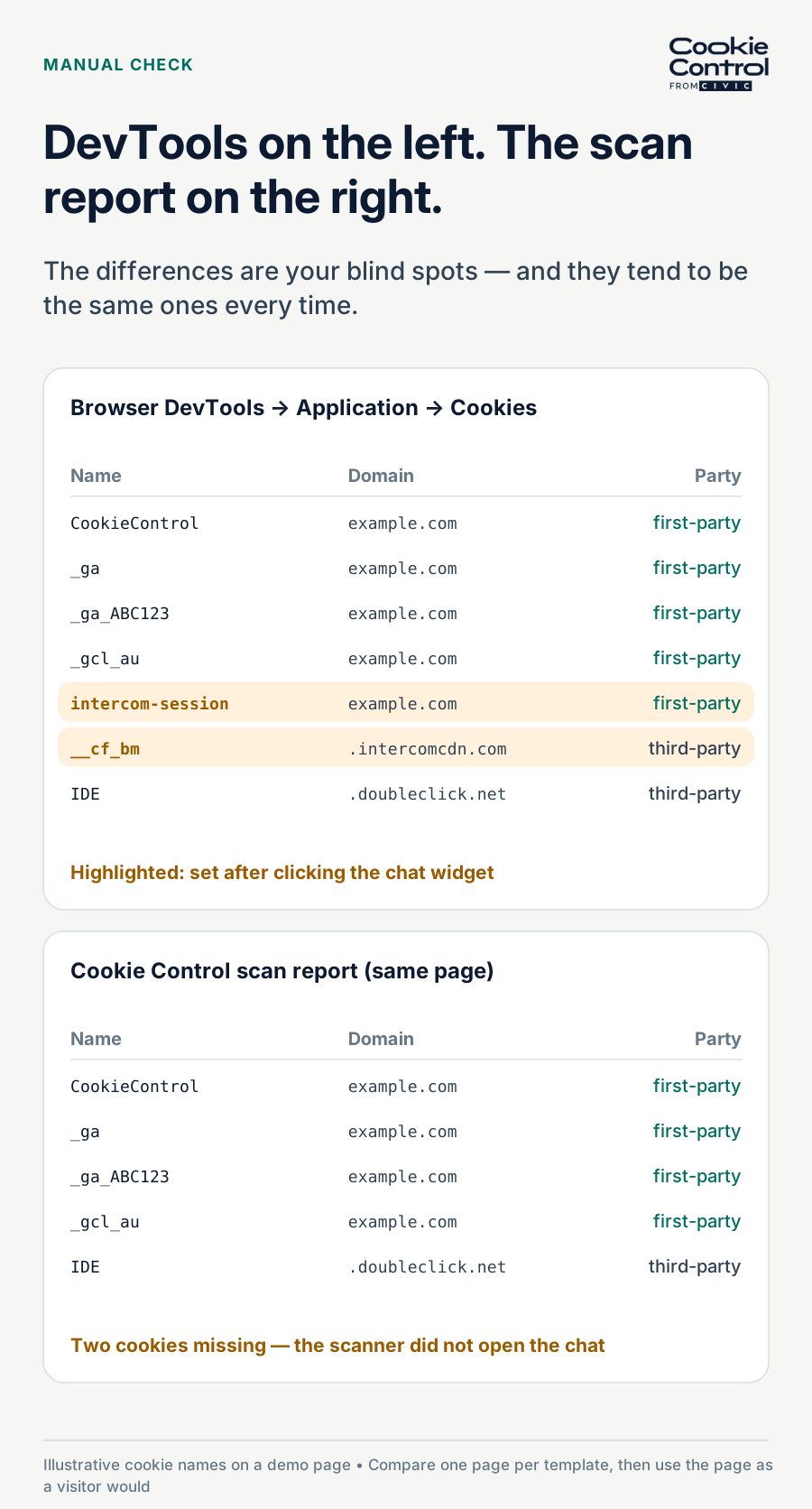
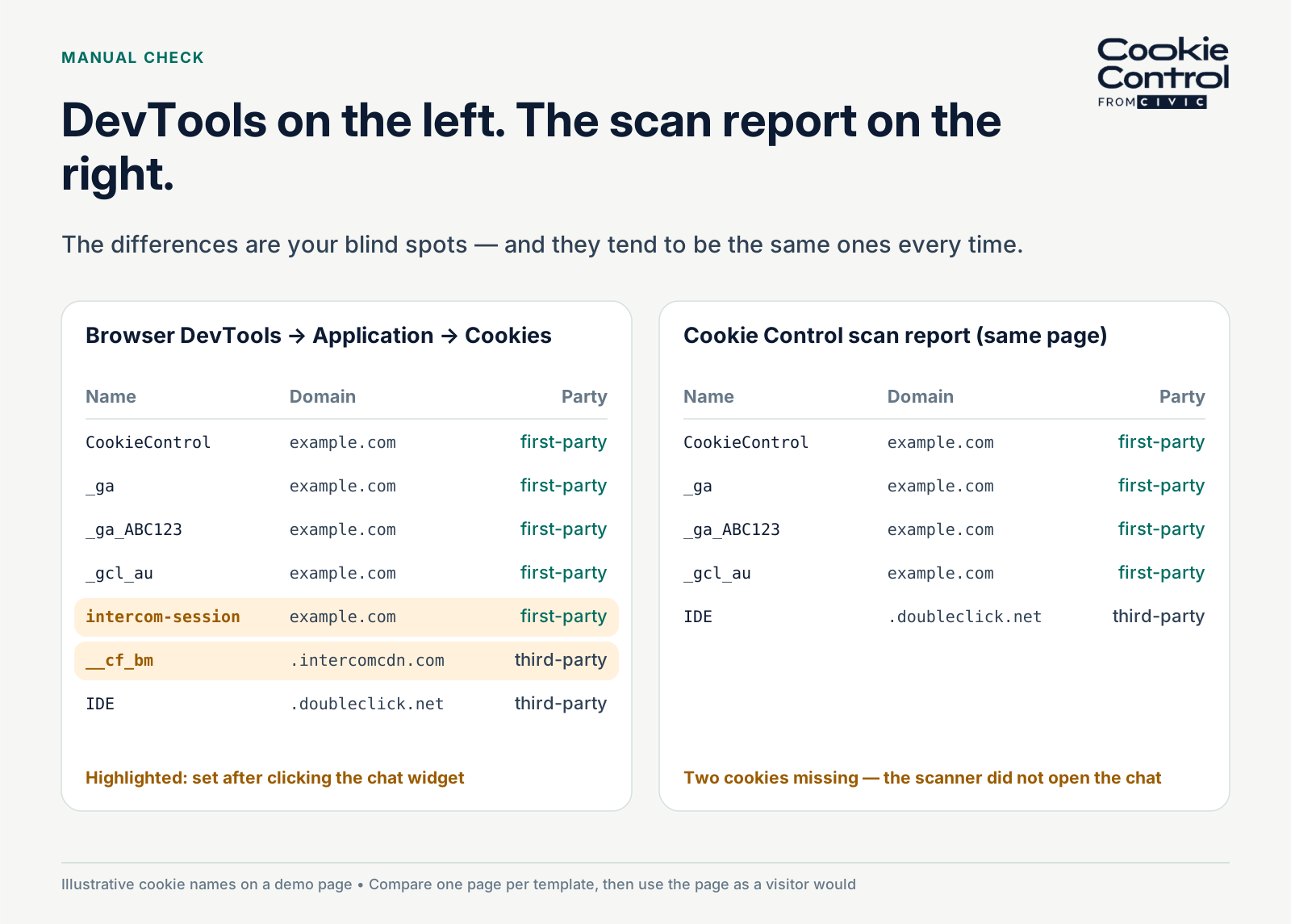
Comparing browser DevTools cookie data with a Cookie Control scan report.
A routine that actually holds up
Combine the two rather than choosing between them:
- Schedule a recurring automated scan so drift is caught without anyone remembering to look — scheduled scans are built into both the CIVIC scanner and Premium's Site Audit for exactly this reason
- Scan behind Cookie Control (an option of the CIVIC scanner) so you are auditing the post-consent surface, not the empty one
- Manually check one page per template each quarter, plus any logged-in area
- Re-scan whenever marketing adds a tool or a developer adds an embed
- Keep the reports. Scan reports are kept for a year from the scan date, and dated evidence of when you checked is worth having
That routine will not make you immune from missing something. It will mean that when you do, you find it in weeks rather than at the point someone complains. And if the scan comes back with almost nothing on it, that is worth a second look too — it may mean you are one of the rare sites that does not need a banner, or it may mean the scan ran into one of the five gaps above. Our guide to whether you need a banner at all covers the first case.
Frequently asked questions
Sources
- Cookie Control — All about the CIVIC cookie scanner
- Cookie Control documentation — Manually check cookies
- Cookie Control Premium documentation — Site Audit