
Custom Events within Google Tag Manager
On this page
The Google Tag Manager (GTM) template includes the ability to track custom events when the consent status is updated for optional cookies such as Analytics and Marketing. This helps to assess how consent changes impact the overall performance of your website or app. Custom events can also be used as a trigger for loading other GTM Tags, which already assume consent has been established.
Anchor link for Create a Custom Event:
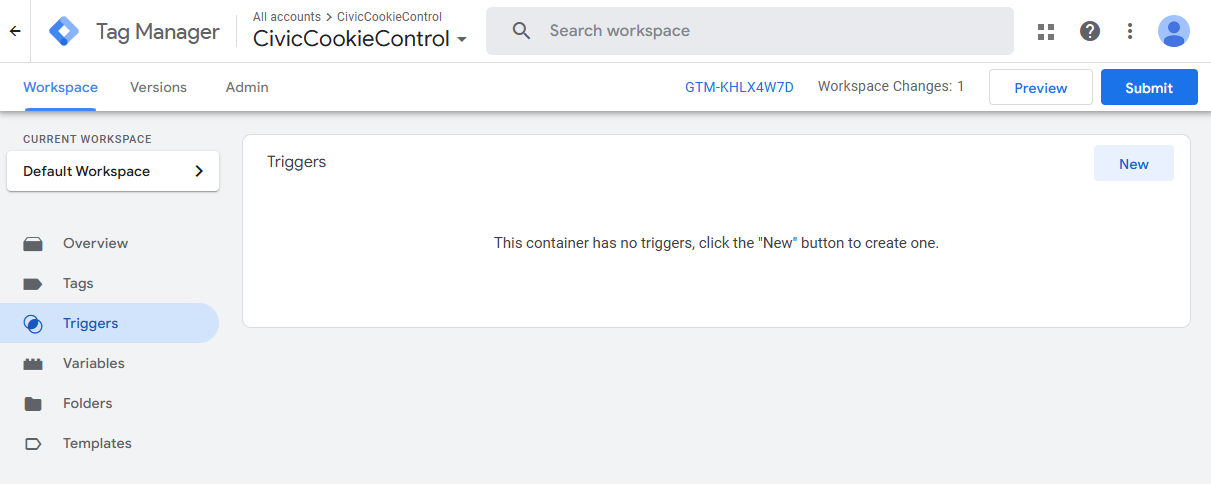
- 1. In GTM, navigate to the 'Triggers' section and create a new trigger.
- 2. By default, the template includes the following custom events: 'analytics_accept', 'analytics_revoke', 'marketing_accept' and 'marketing_revoke'.
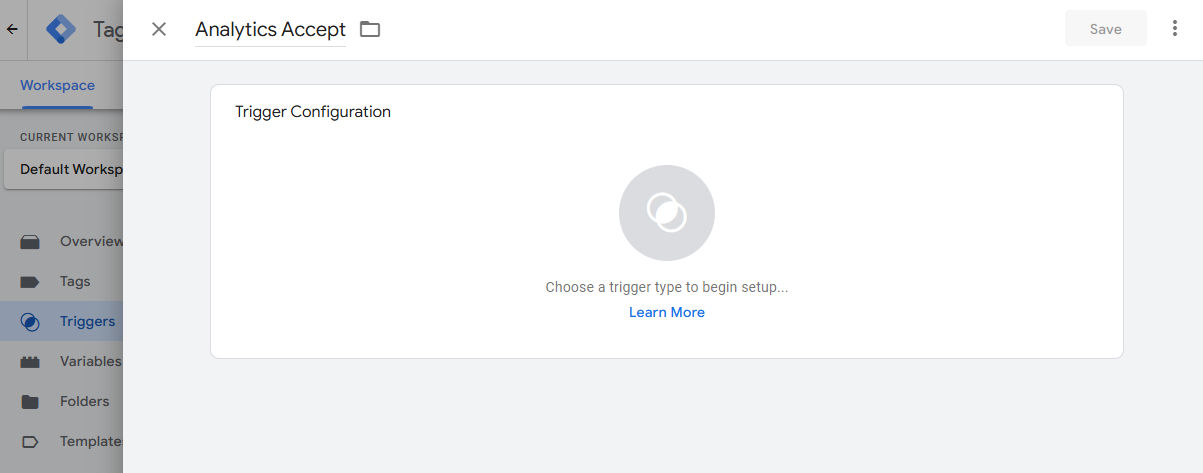
- 3. Give the trigger an appropriate name (e.g. Analytics Accept).
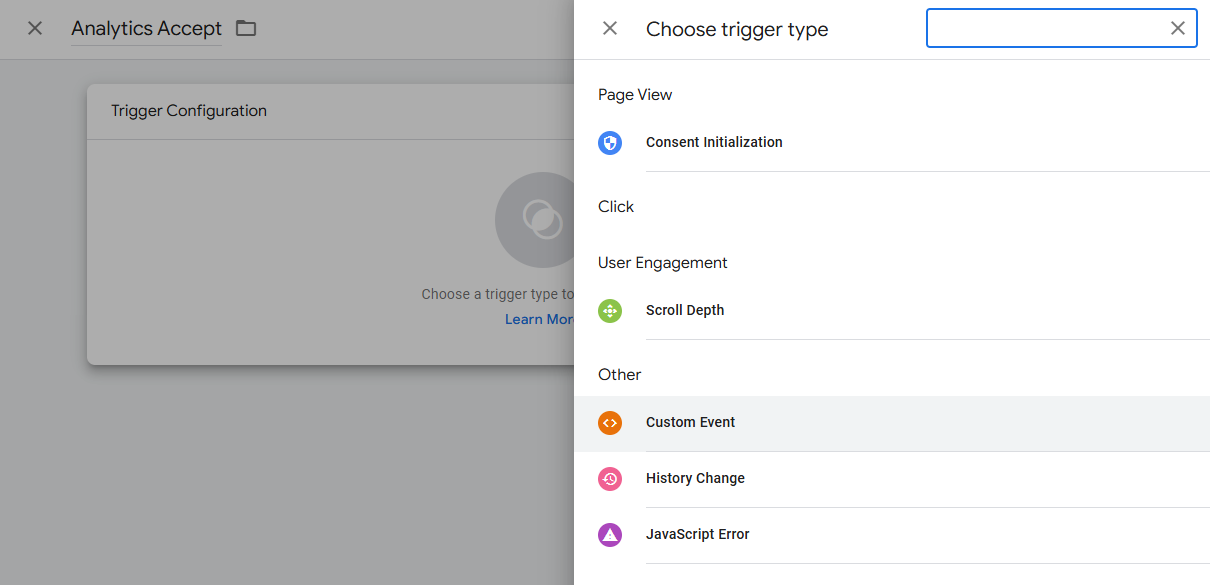
- 4. Select 'Custom Event' as the trigger type found under Other.
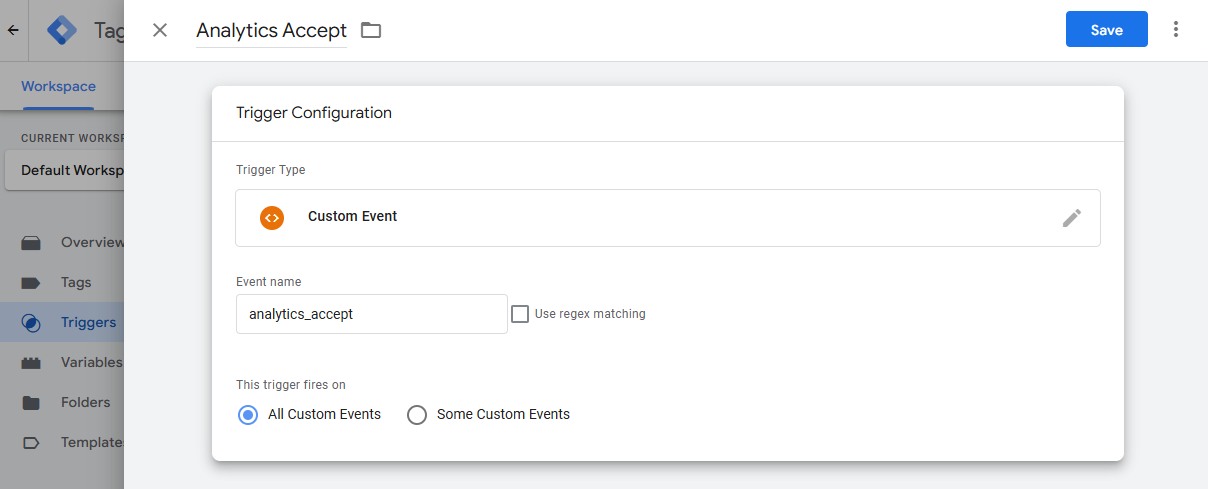
- 5. Set the event name based on the conset change we are looking to track (e.g. analytics_accept) and set the trigger to fire on 'All Custom Events'.
- 6. After defining the custom event settings, 'Save' the trigger.
- 7. Repeat this for each consent state (e.g. Analytics / Marketing, Accept / Revoke).
Anchor link for Using Custom Events:
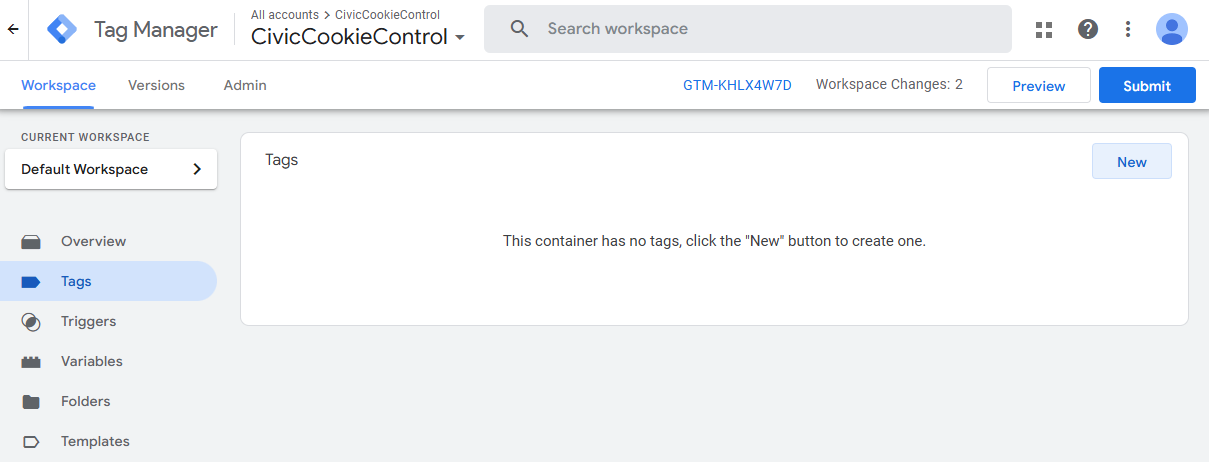
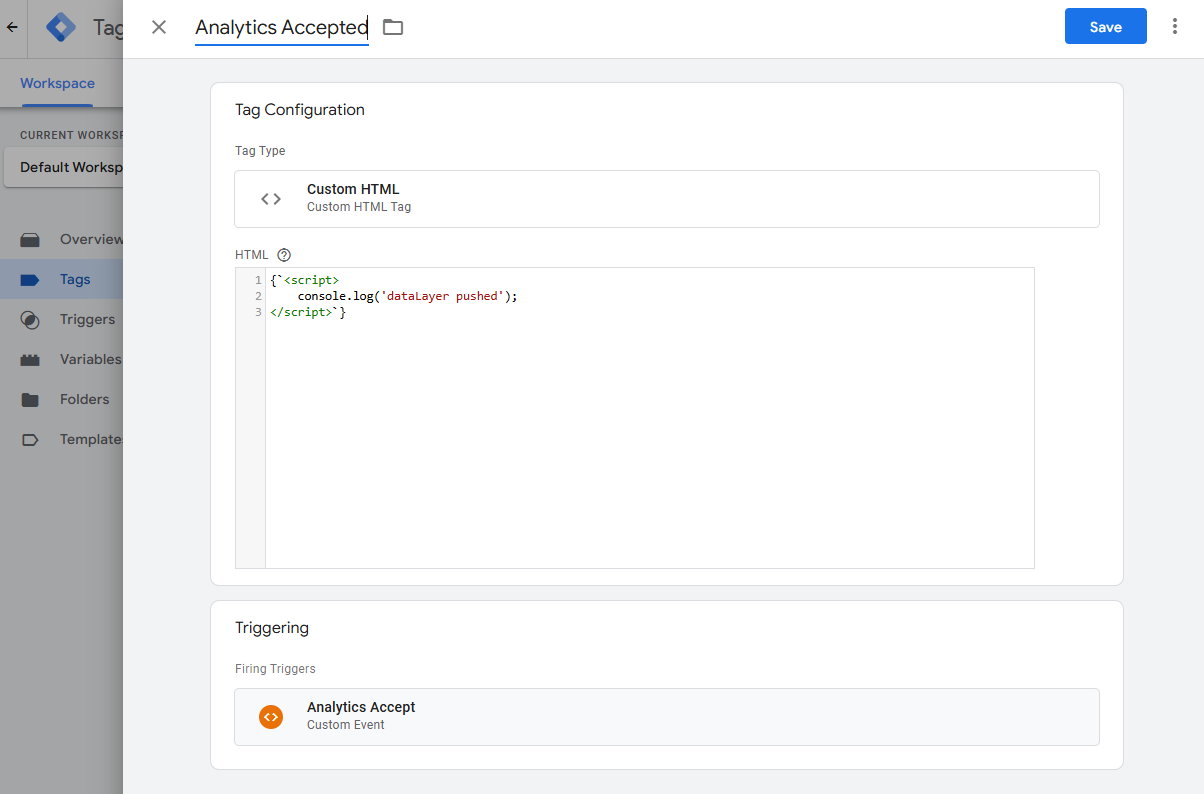
- 1. Go to the 'Tags' section in GTM.
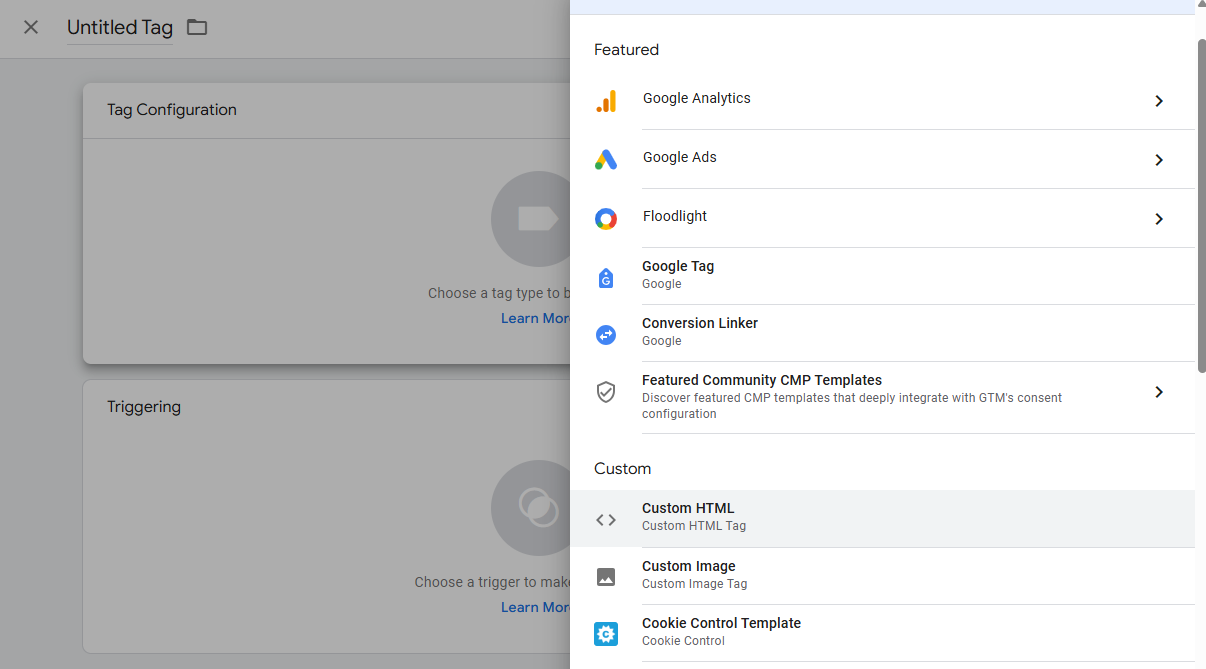
- 2. Create a new Tag, for example a 'Custom HTML' Tag.
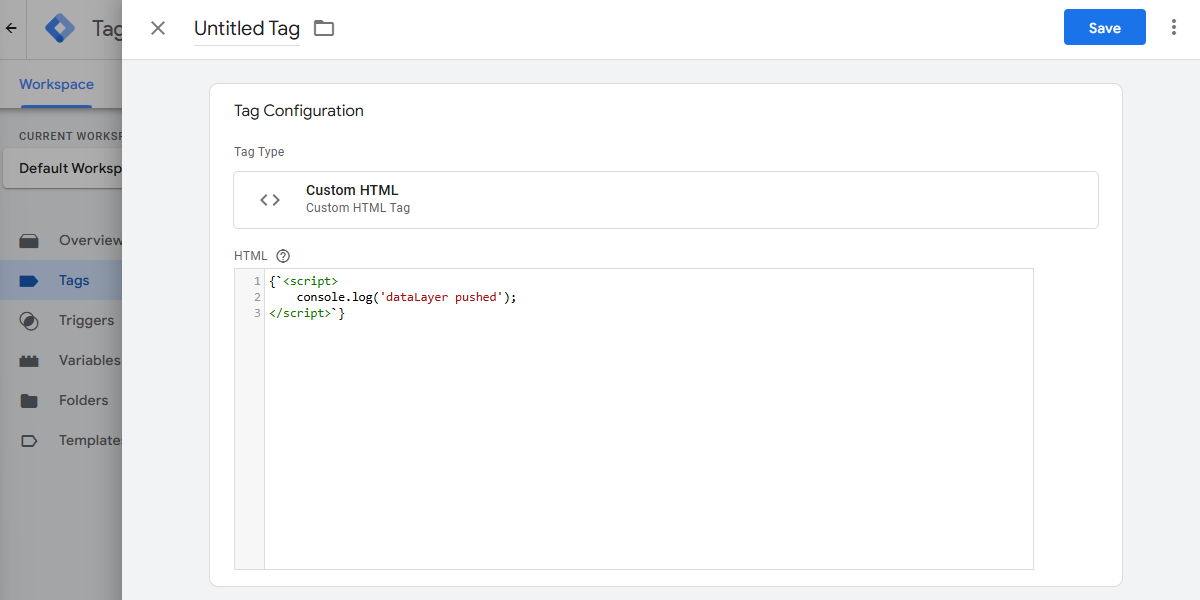
- 3. Edit the HTML code block as needed.
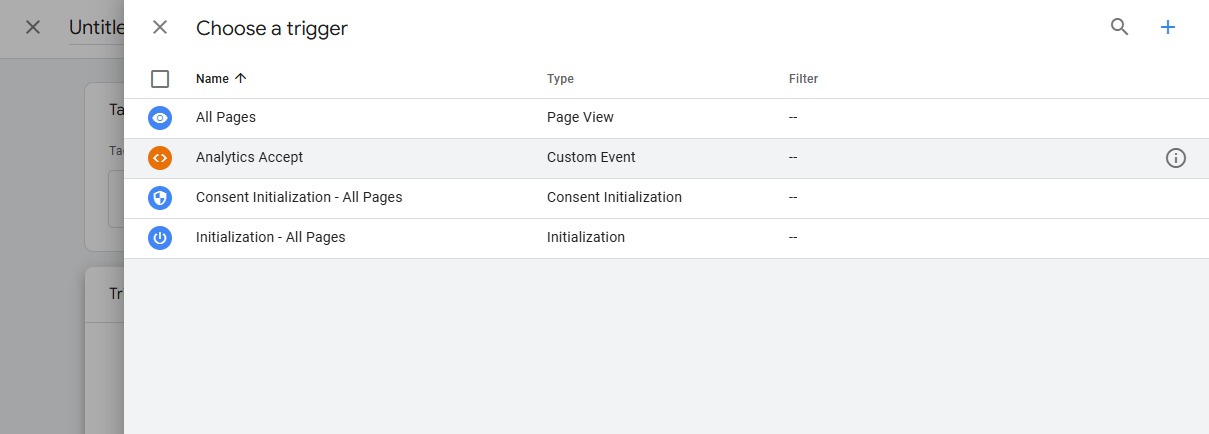
- 4. Assign the previously created custom event trigger (e.g. Analytics Accept) to this tag.
- 5. Name the tag and 'Save'.
- 6. To test the custom event, once the event fires, check the browser's console for the message "dataLayer pushed" to confirm the event has been successfully recorded.
Please note, if you require a listener function to execute when the state of the specified consent type changes. Please use Google's addConsentListener API.