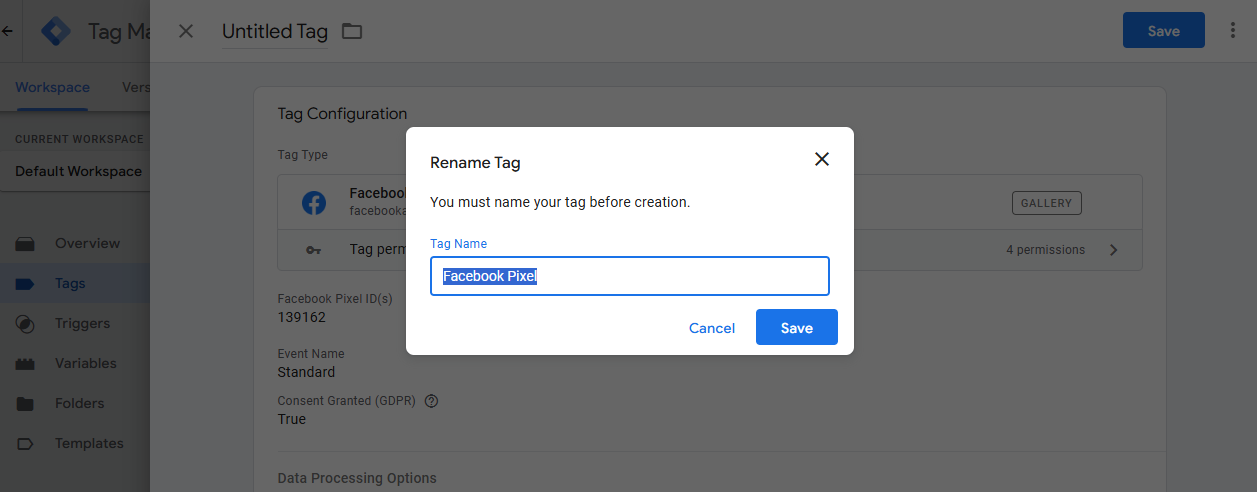
Meta Pixel with Google Tag Manager setup guide
If you're looking to set up Meta Pixel tracking alongside Google Consent Mode V2 in Google Tag Manager (GTM), this guide walks you through the process using GTM's Facebook (Meta) Pixel template.
The steps below show you how to locate your Pixel ID in Meta Business Suite and configure it in GTM to work in line with your Cookie Control implementation.
Anchor link for Meta Pixel Data Stream
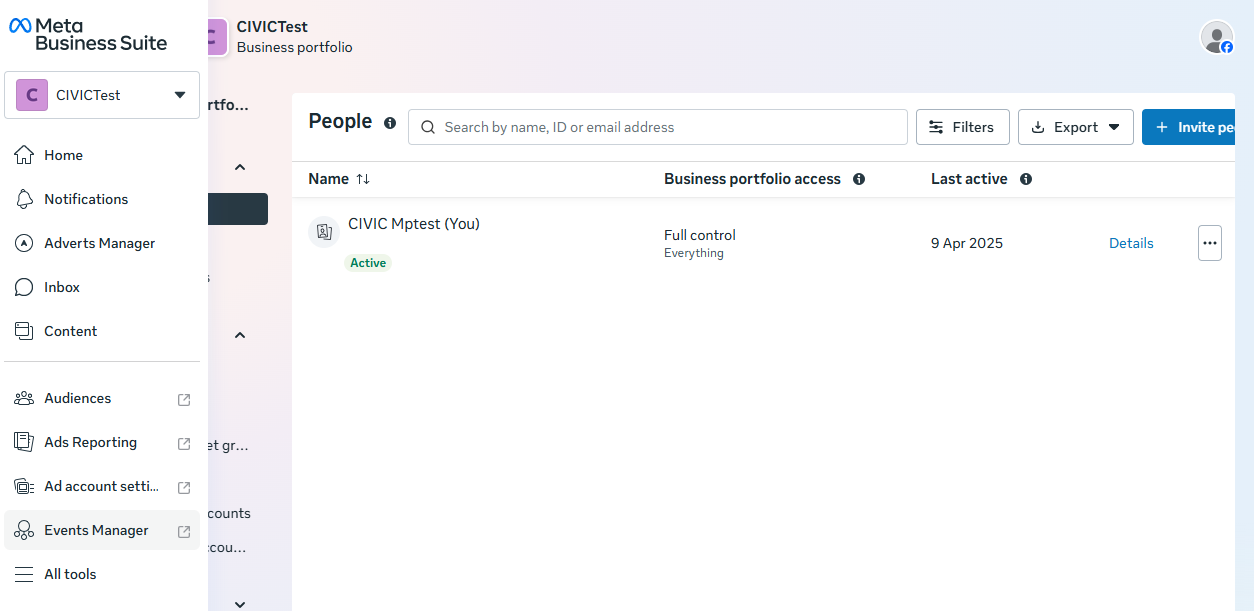
- Within the Meta Business Suite User Area, navigate to 'Events Manager' found within the side menu.
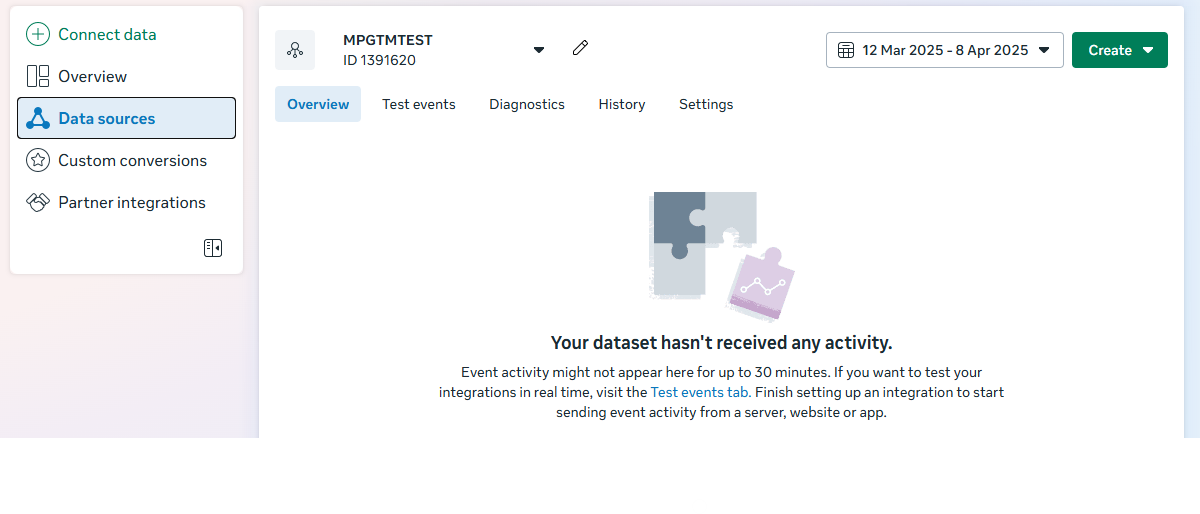
- Within the Data Sources page make a note of the 'Pixel ID'.
Anchor link for Integrating Meta Pixel Tag with Cookie Control
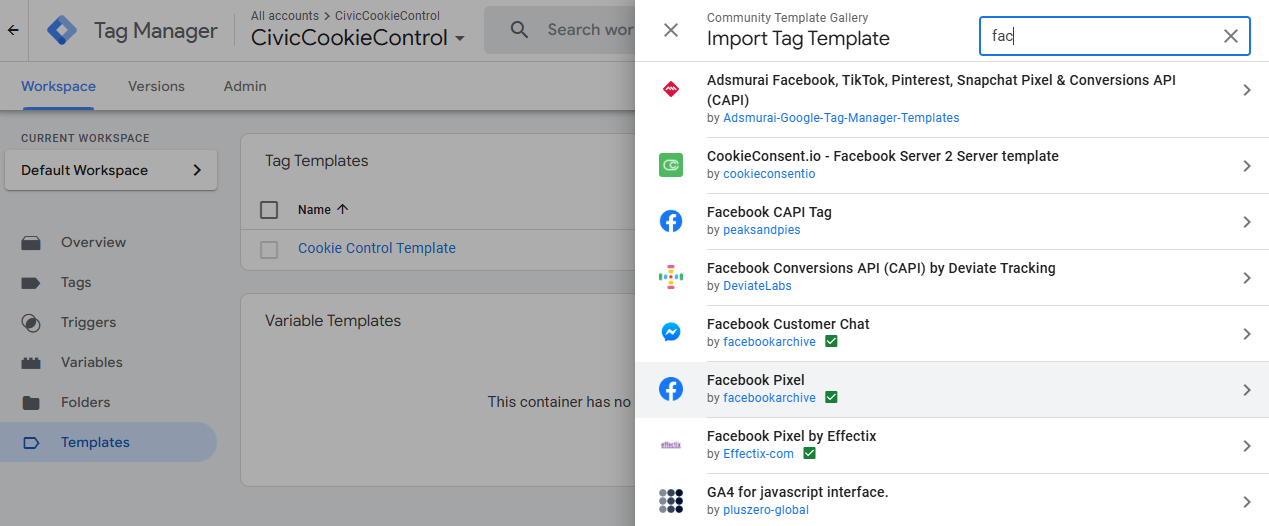
- Go to the 'Templates' section in GTM.
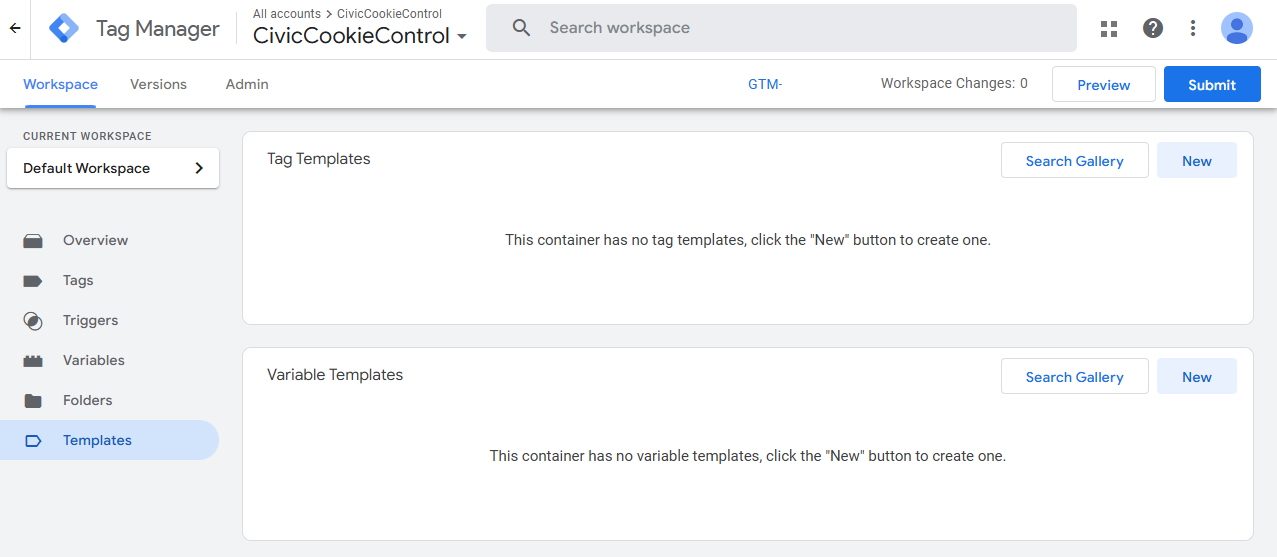
- Using the 'Search Gallery' search for 'Facebook' and download the 'Facebook Pixel' template.
- Go to the 'Tags' section in GTM.
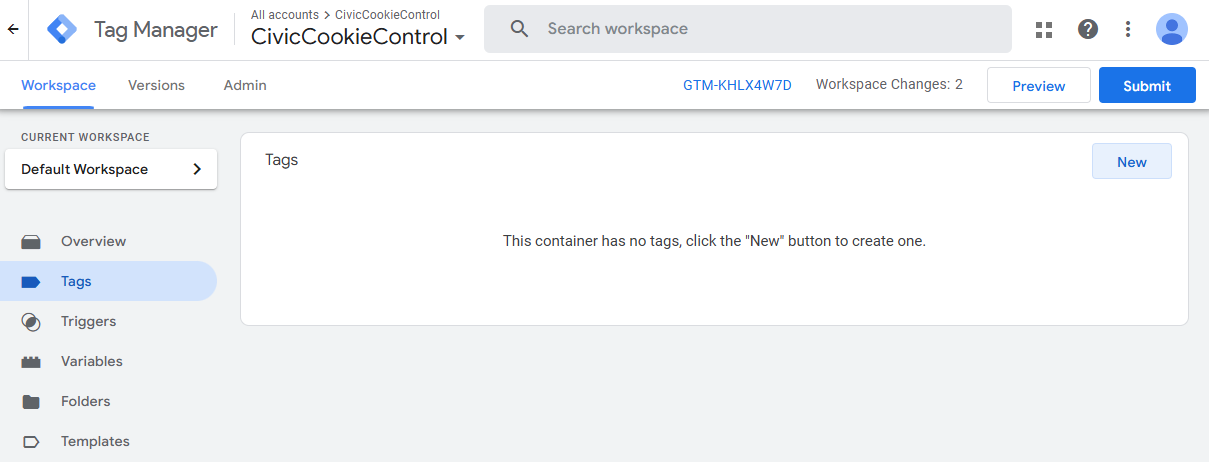
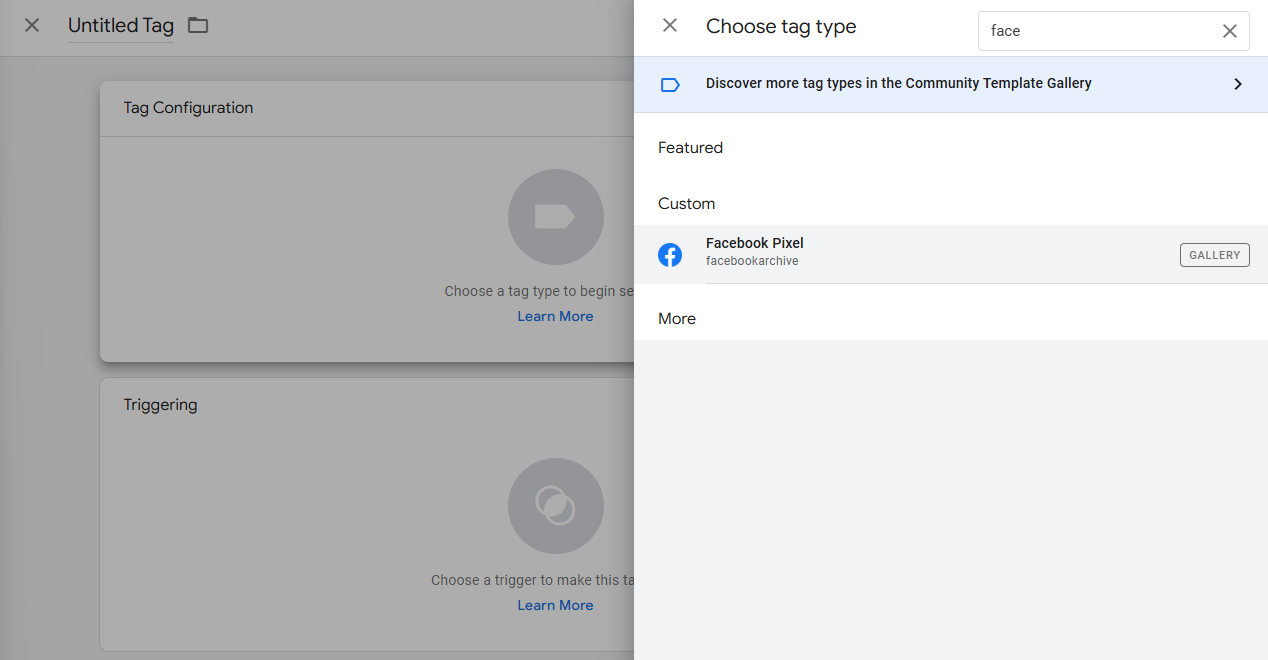
- Create a new tag and edit the tag configuration.
- Use the search bar to look for the 'Facebook Pixel' template under 'Custom'.
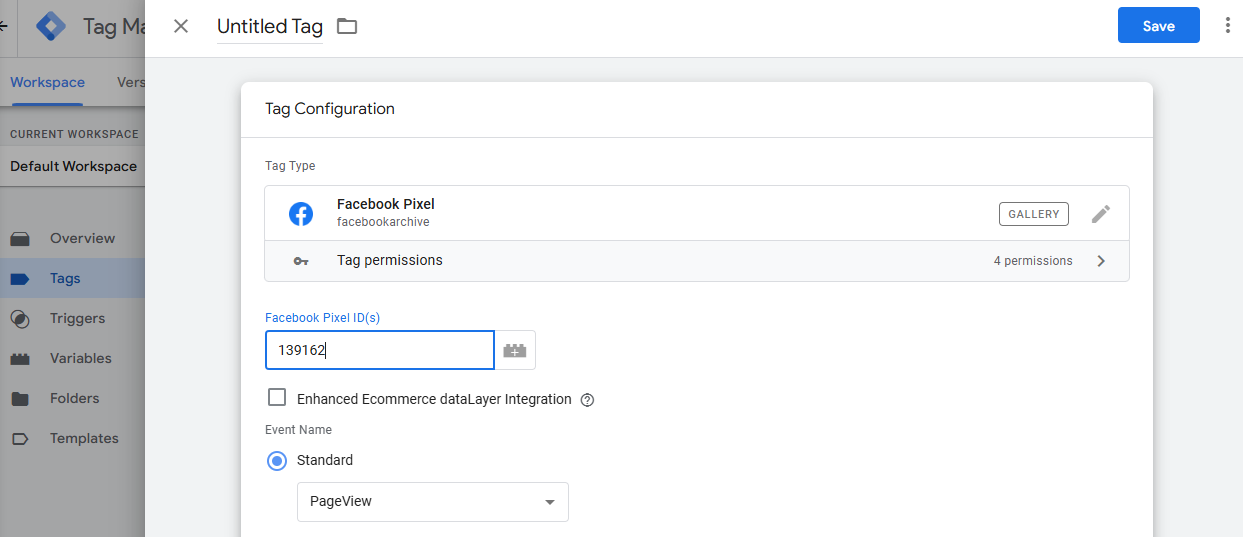
- Enter your 'Pixel ID'.
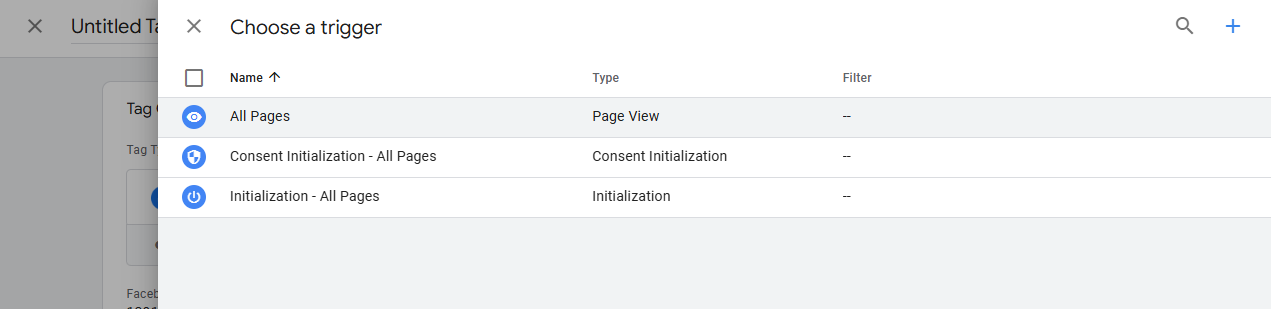
- Select 'All Pages' as the Trigger.
- Rename your tag and 'Save'.