
Implementing Microsoft UET with GTM
If you're looking to enhance your site's tracking capabilities by integrating Microsoft Universal Event Tracking (UET) alongside Google Consent Mode v2, this guide will show you how to do so using Google Tag Manager (GTM). By combining these tools, you can ensure that your Microsoft Advertising campaigns respect user consent while maintaining accurate conversion tracking. Our updated GTM Template streamlines the process and includes built-in support for Microsoft UET tags, making setup faster and more reliable. Follow the steps below to configure everything correctly.
Anchor link for Creating a Microsoft UET Tag
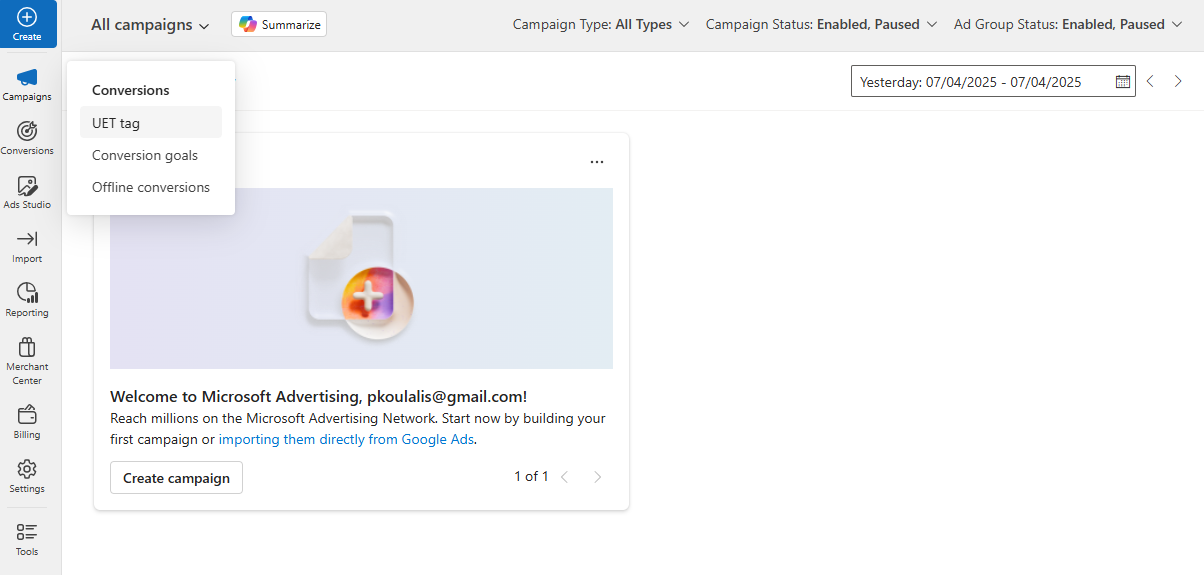
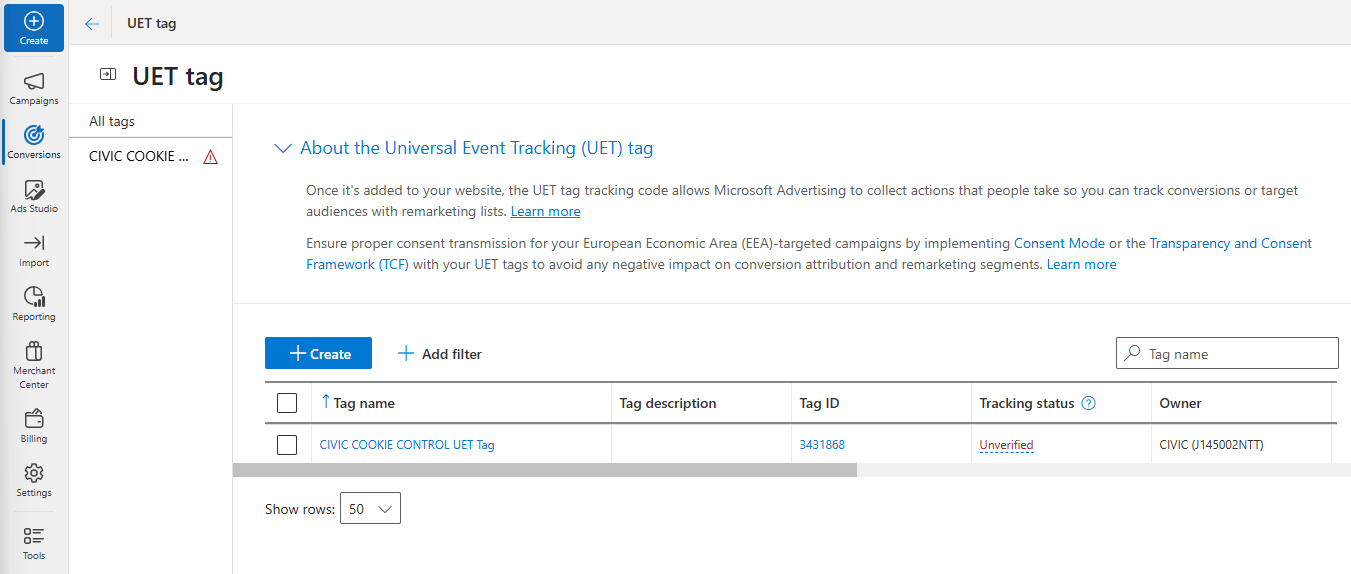
- 1. Within the Microsoft Advertising User Area, navigate to 'UET tag' section found within 'Conversions'.
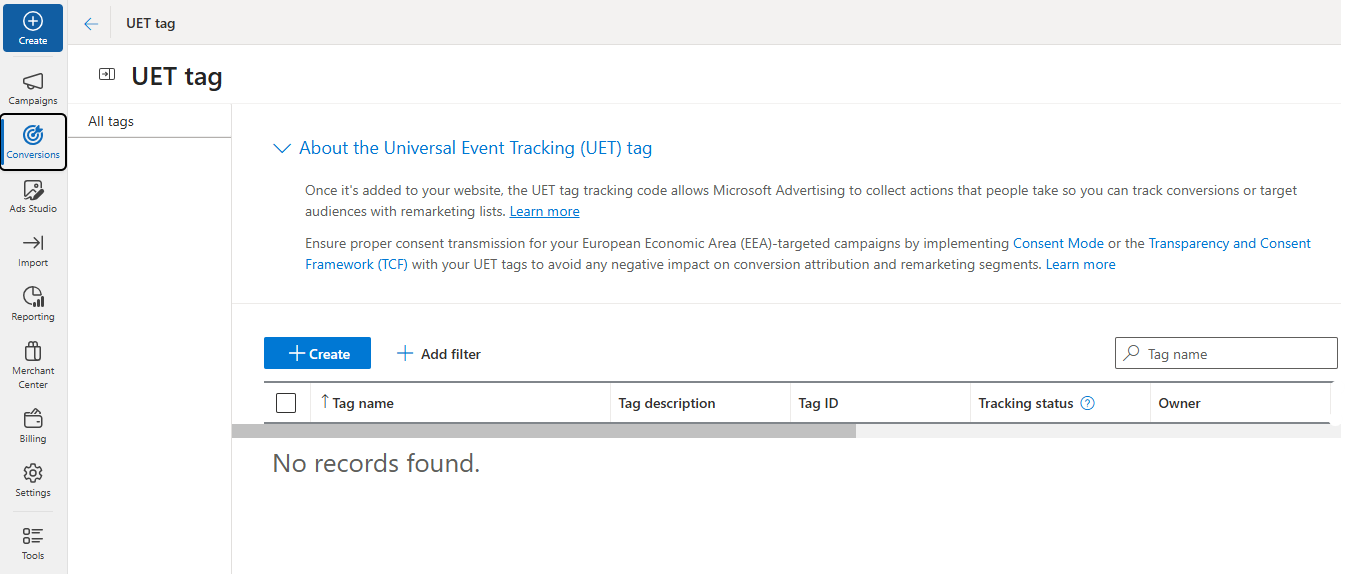
- 2. Create a new tag by selecting the '+ Create' button.
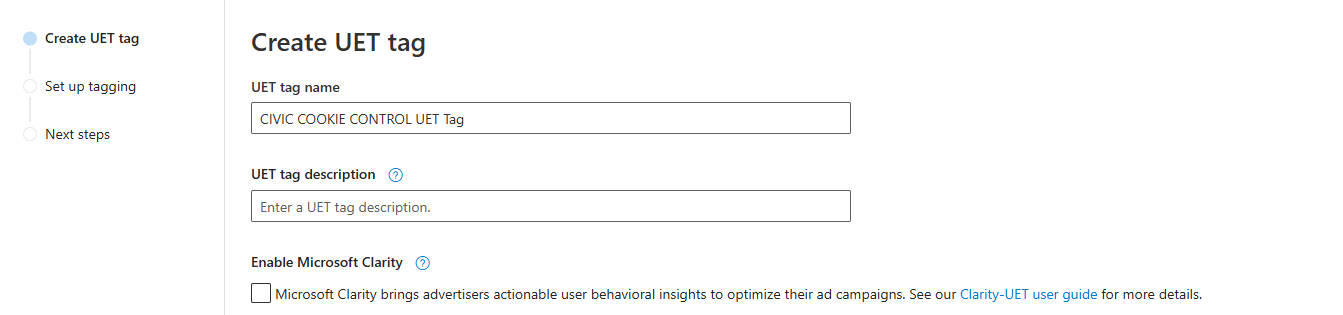
- 3. Fill in the tag details 'name' and 'description'.
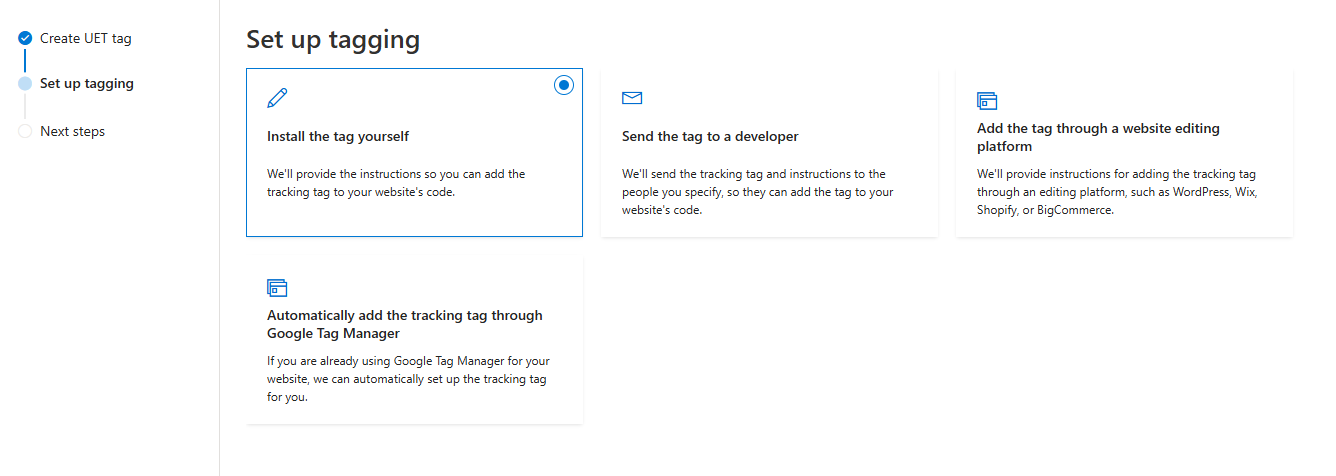
- 4. Select the 'Install the tag yourself' installtion method.
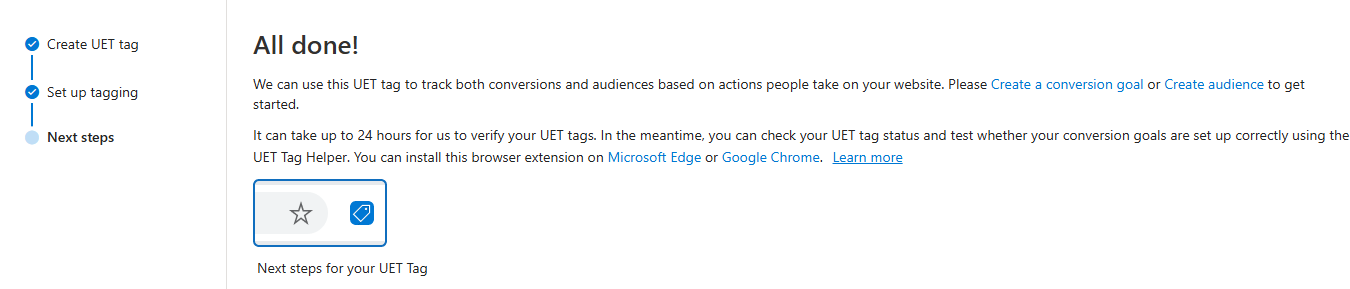
- 5. Skip the manual installation page and press 'Done'.
- 6. From within the UET Tag page find your new UET Tag and record the 'Tag ID'.
Anchor link for Integrating Microsoft UET Tag with Cookie Control GTM Template
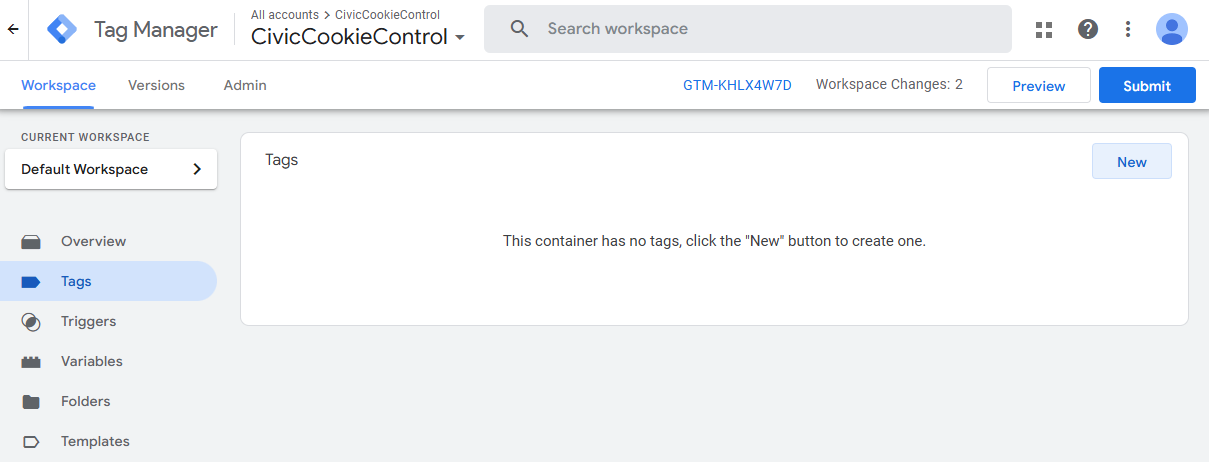
- 1. Go to the 'Tags' section in GTM.
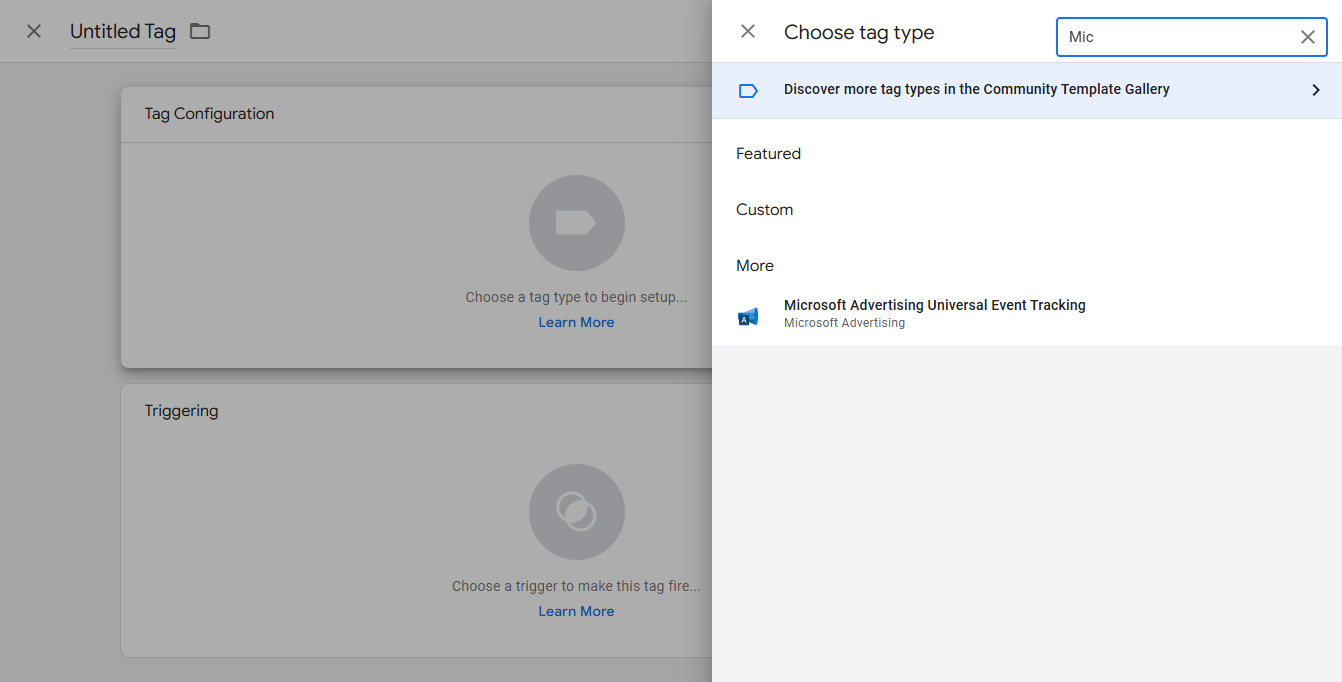
- 2. Create a new tag and edit the tag configuration.
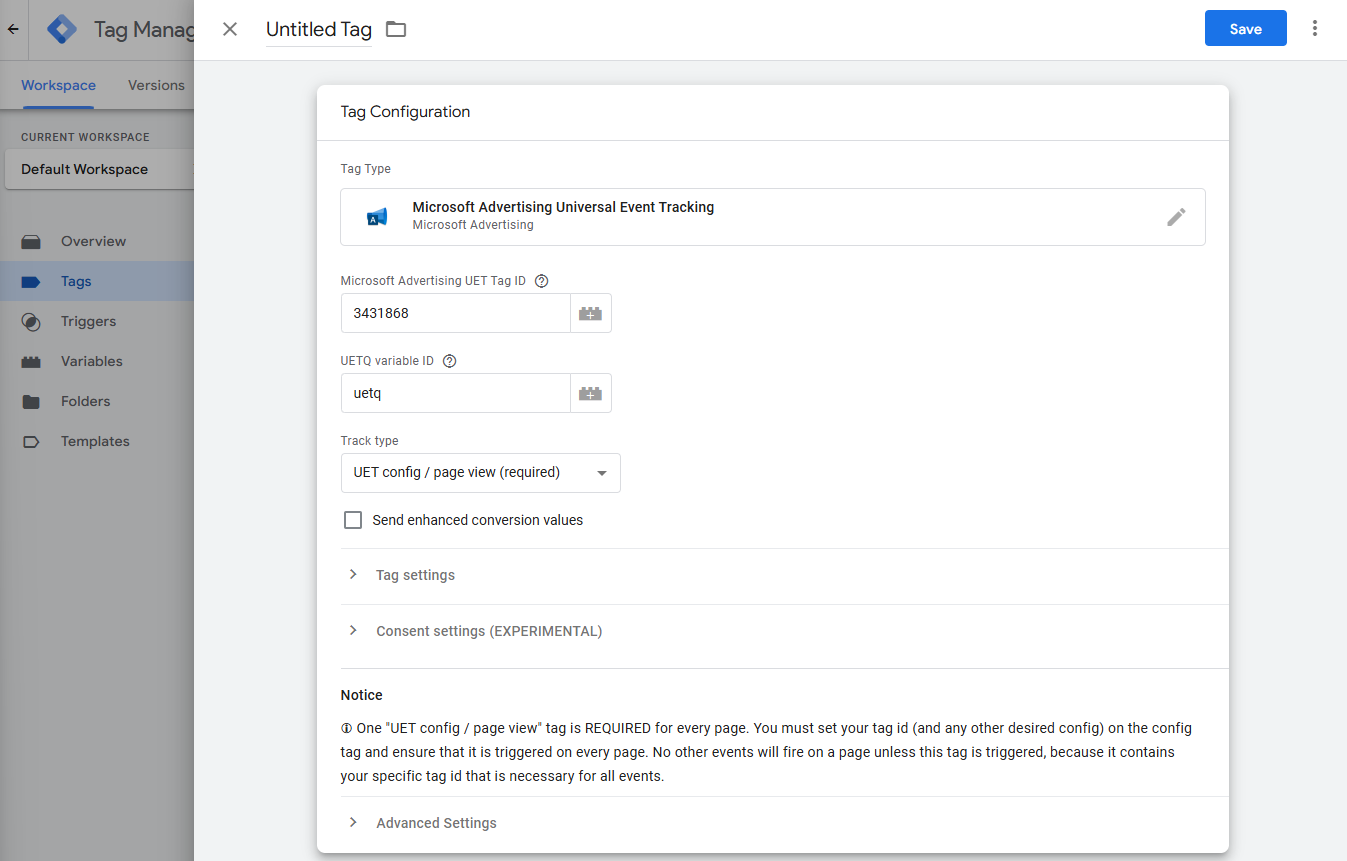
- 3. Use the search bar to look for the 'Microsoft Advertising Universal Event Tracking' template under 'More'.
- 4. Enter your 'Microsoft Advertising UET Tag ID'.
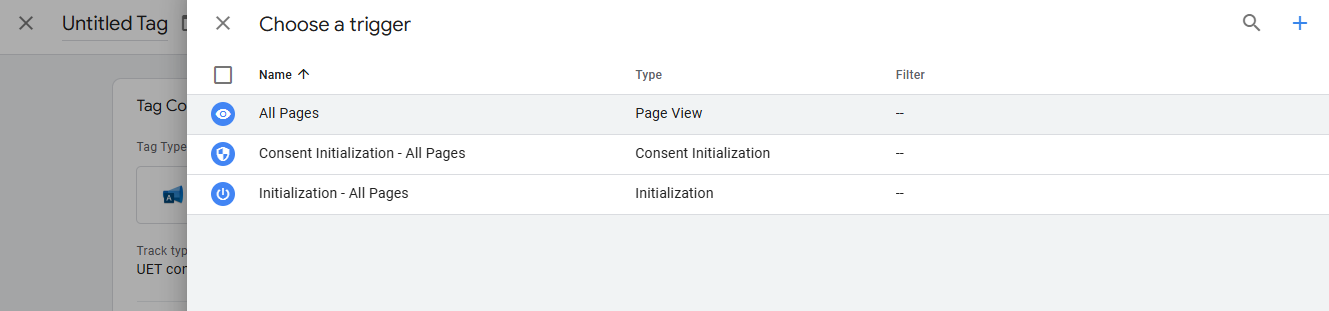
- 5. Select 'All Pages' as the Trigger.
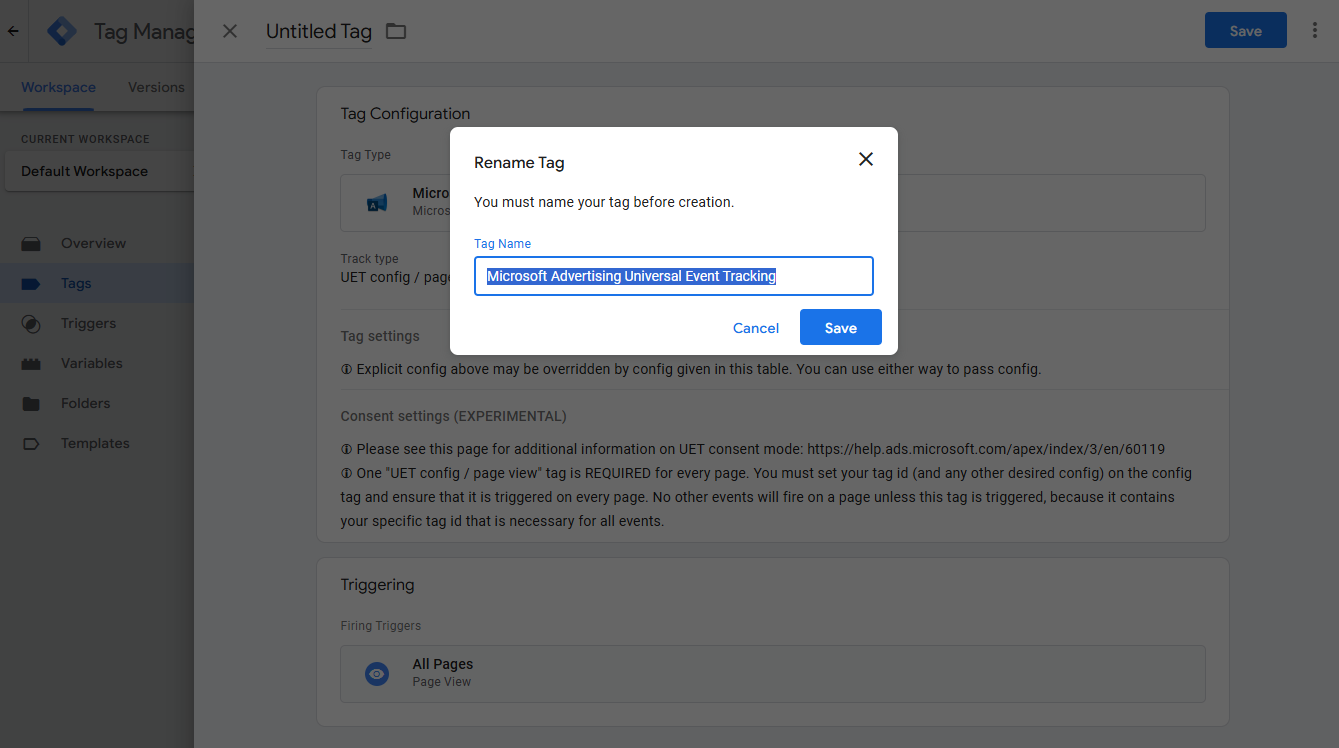
- 6. Rename your tag and 'Save'.
To test that the tag is working we suggest using the UET Tag Helper that can be found within the Microsoft Advertising documentation.