Google Consent Mode v2 Setup with Cookie Control
Set up Consent Mode v2 properly. The signals, the two-second wait for stored preferences, and the default that catches people out.
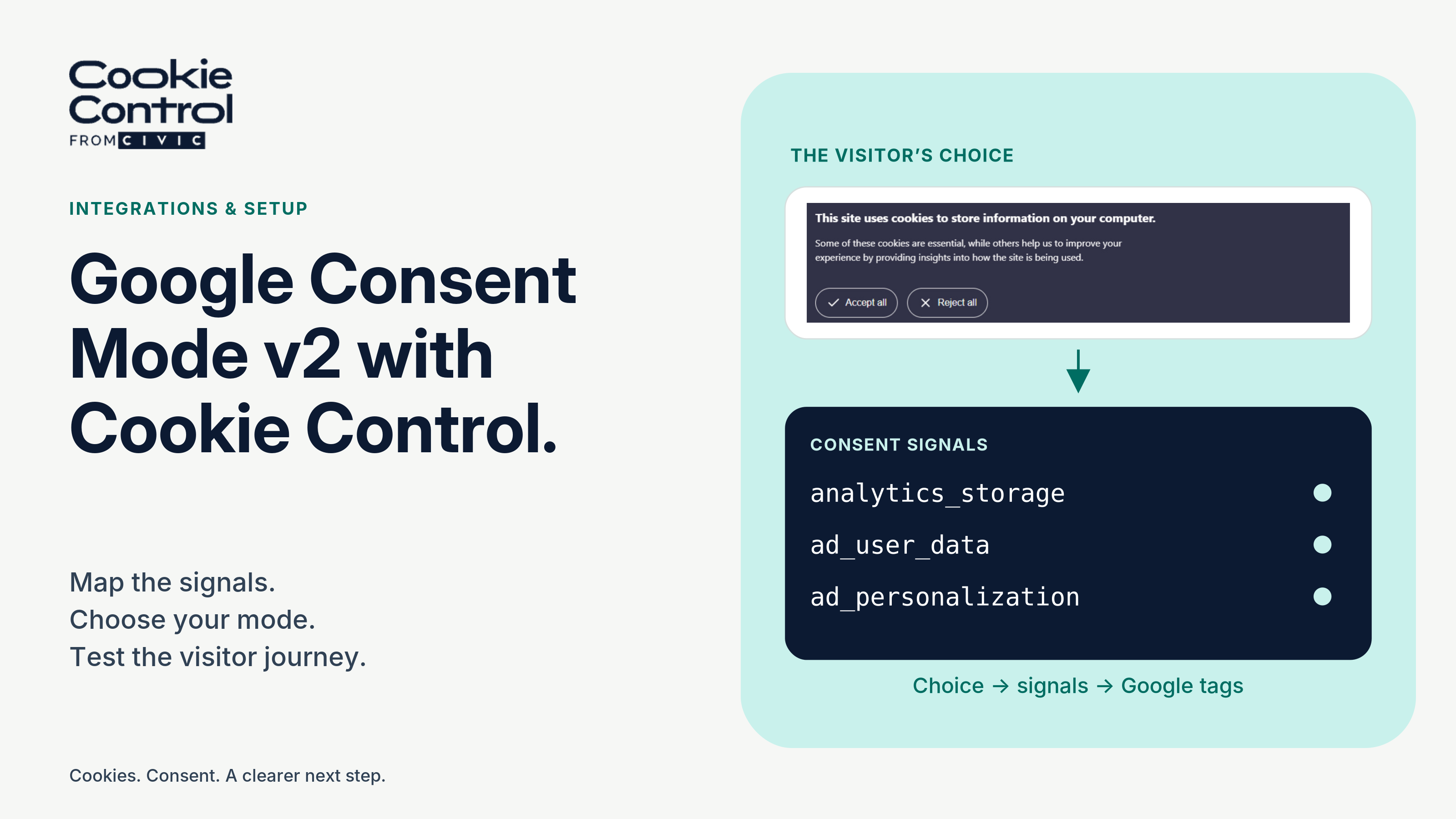
Consent Mode v2 tells Google products whether a visitor consented. Cookie Control sets the signals to denied by default except security_storage, which is granted, then updates the mapped signals when the visitor chooses. Its 2,000-millisecond wait gives saved preferences time to load; it is not a guarantee that all tracking is blocked.
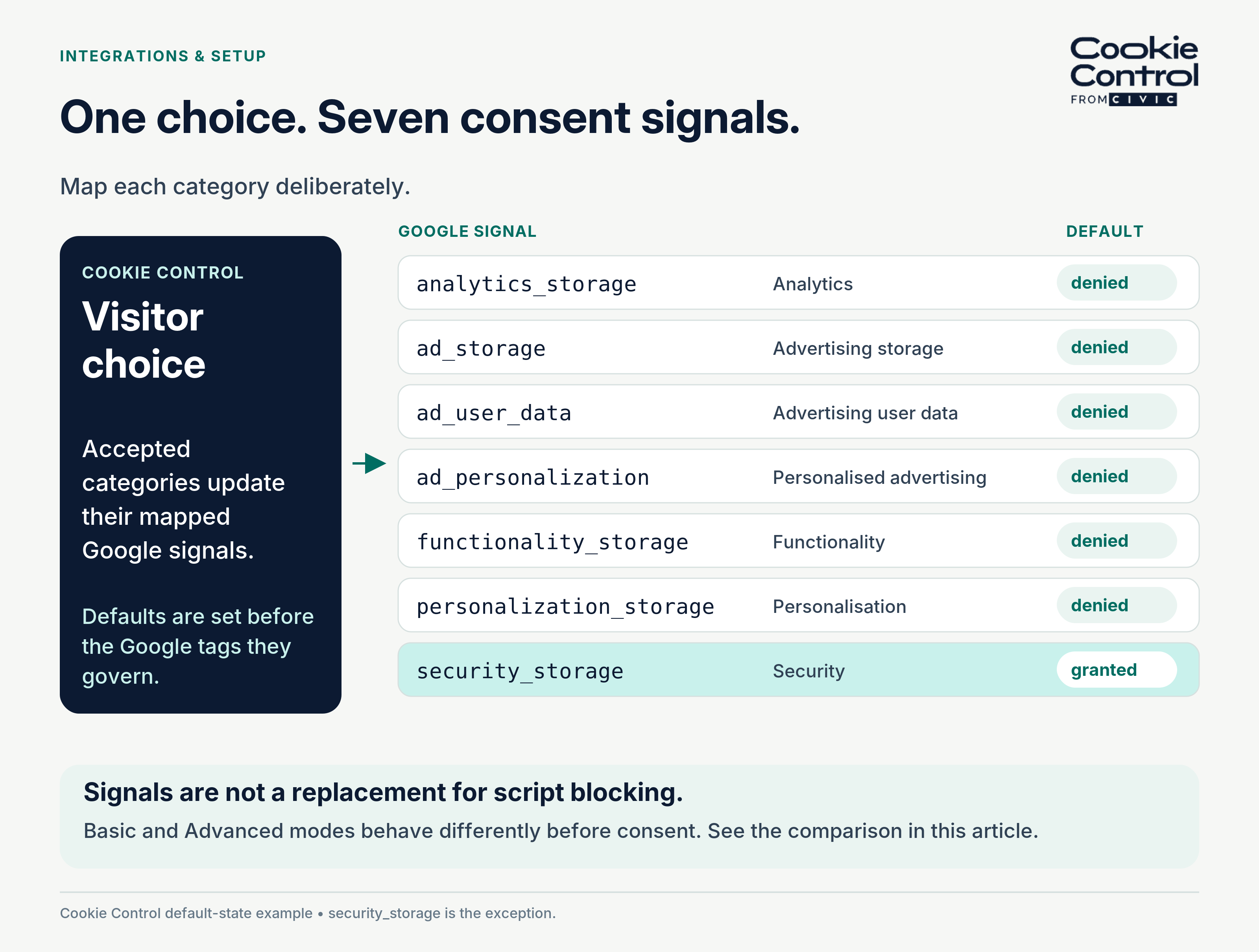
The visitor’s choice updates the mapped consent signals. The default-state example leaves security_storage granted and the other signals denied.
Consent Mode is the layer between your cookie banner and Google's products. Get it wrong and you either lose measurement you were entitled to, or you collect data you were not.
This guide covers what it is, how Cookie Control implements it, and the mistakes that show up most often.
What Consent Mode actually does
It is not a general-purpose script blocker. That is the most common misunderstanding.
Consent Mode is a signalling system. In Advanced mode, Google's tags load and receive a set of signals telling them what the visitor agreed to, and they adjust their behaviour accordingly. Denied storage signals prevent the corresponding cookies being read or written, while cookieless pings may still be sent; granted signals enable the corresponding normal behaviour. Basic mode keeps the tags blocked until consent.
Because it is signalling rather than blocking, Consent Mode does not replace a consent banner or script blocking. It sits alongside them.
The signals
Consent Mode v2 uses seven signals. The four that matter most for advertising and analytics are:
- ad_storage — storage for advertising purposes
- analytics_storage — storage for analytics
- ad_user_data — whether user data may be sent to Google for advertising
- ad_personalization — whether data may be used for personalised advertising
The remaining three cover functionality_storage, personalization_storage and security_storage.
Which signal governs what
- analytics_storage — Google Analytics 4 cookies and measurement. Denied means cookieless pings or nothing, depending on mode.
- ad_storage — advertising cookies, including conversion measurement for Google Ads.
- ad_user_data — whether user data may be sent to Google for advertising at all.
- ad_personalization — whether that data may be used for personalised advertising and remarketing.
- functionality_storage and personalization_storage — site preferences such as language or layout, and personalisation beyond advertising.
- security_storage — fraud prevention and authentication. The one signal that stays granted.
Map your categories to these deliberately. A single "marketing" category usually needs to drive ad_storage, ad_user_data and ad_personalization together; leaving the last two unmapped is the most common way a v2 set-up turns out to be v1.
The defaults, and the one exception
Cookie Control sets all signals to denied by default, before the Google tags they govern act on that state. With one exception: security_storage is granted, because it covers storage needed for security purposes such as fraud prevention, which does not depend on consent in the same way.
That single exception is worth knowing when you are auditing your own configuration — seeing one granted signal in the default block is correct, not a bug.
The opposite mistake is far more damaging: allowing tags to act on an inappropriate or uninitialised consent state. Set and verify the default state explicitly before the Google tags it governs; do not rely on a blanket assumption about Google's defaults. Our documentation flags default-state configuration because it is such a common source of mistakes.
The two-second wait, and why it exists
There is a detail in our implementation that solves a problem most setups ignore: returning visitors.
Somebody who consented last week arrives again. Their preference is stored, but reading it takes a moment. If tags fire before that read completes, the visitor is treated as unconsented — or worse, treated as consented by default when they had refused.
Cookie Control sets a wait of 2,000 milliseconds. That gives it up to two seconds to read the visitor's stored preferences before consent-aware Google tags send data using the default state. An update can end the wait sooner; if it times out, the applicable defaults remain in effect. In Advanced mode, denied storage can still mean cookieless pings.
gtag('consent', 'default', { ad_storage: 'denied', analytics_storage: 'denied', ad_user_data: 'denied', ad_personalization: 'denied', functionality_storage: 'denied', personalization_storage: 'denied', security_storage: 'granted', wait_for_update: 2000 });
Two seconds is a deliberate trade-off. Shorter can mean sending data under the defaults before the preference is read; longer can delay measurement unnecessarily.
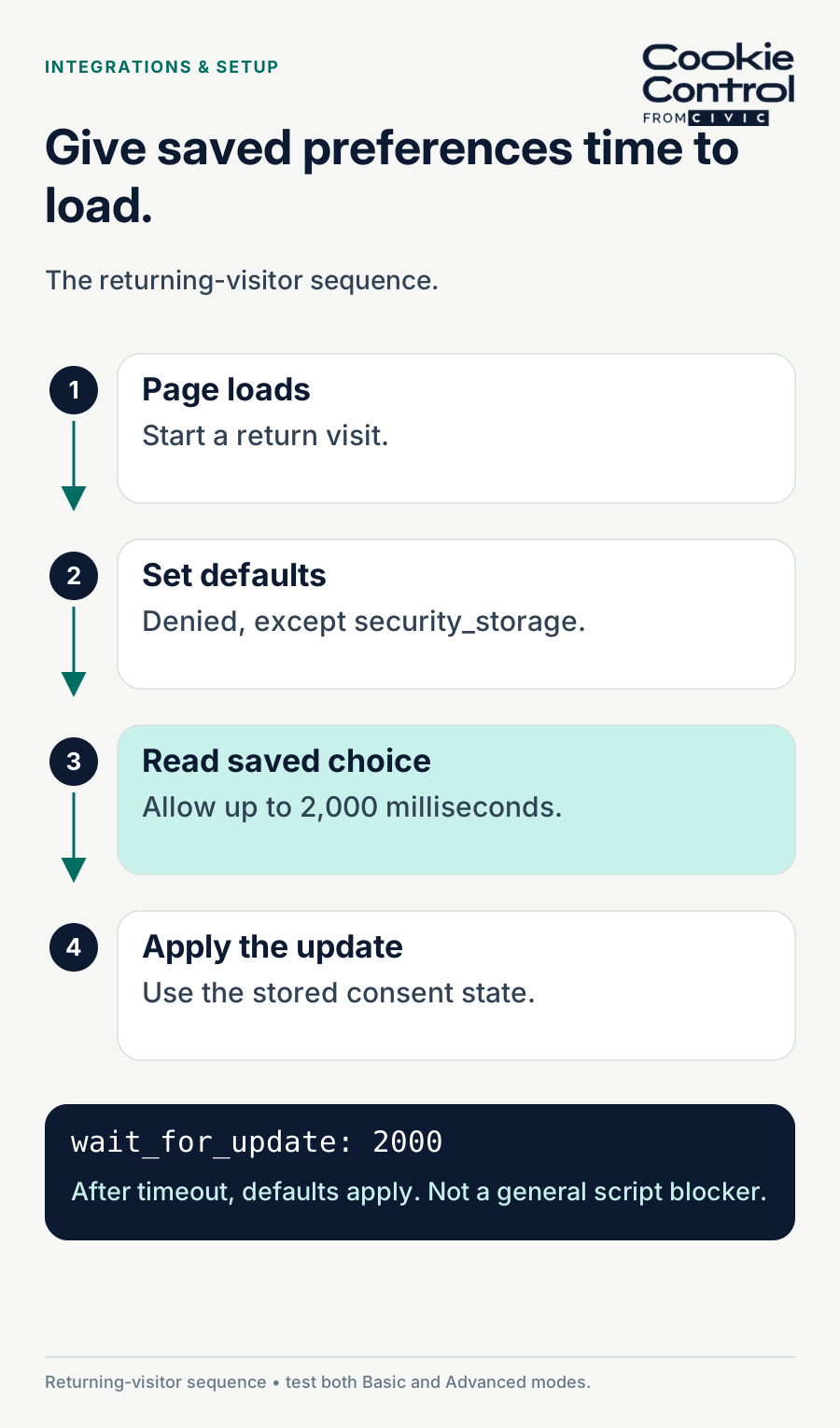
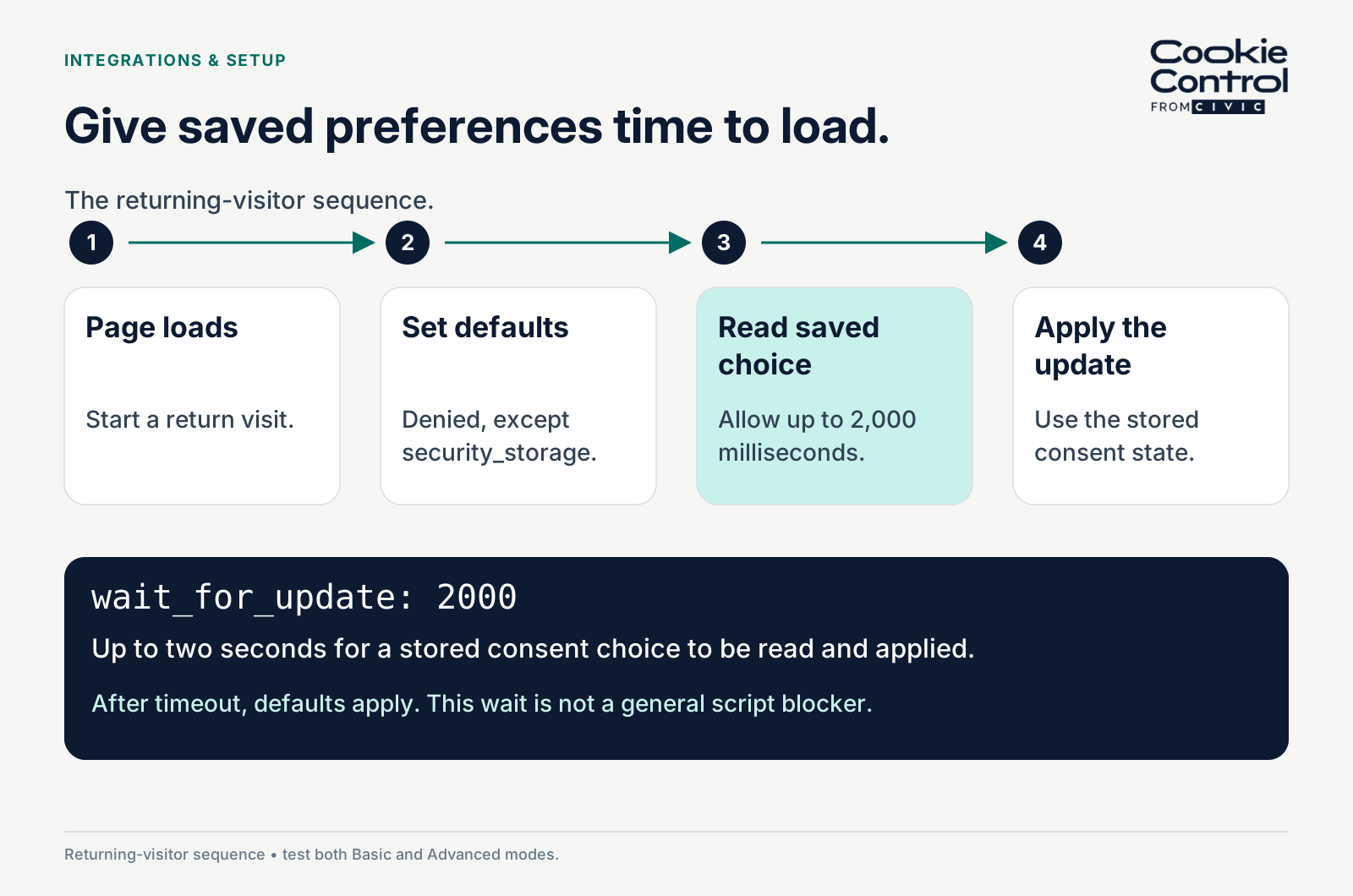
Returning visitors: allow up to 2,000 milliseconds for a stored choice. After timeout the defaults apply; the wait is not a general script blocker.
Setting it up in Premium
Consent Mode v2 is a built-in integration in Premium, so the set-up is configuration rather than code.
- In the user area, open Consent Banner and then the Integrations tab.
- Enable Google Consent Mode v2. It asks for your Google Tag Manager container ID (GTM-XXXXXXX).
- Choose Basic or Advanced. Advanced is the default; see below for the trade-off.
- Map your categories to the Google signals — typically analytics to analytics_storage and marketing to the advertising signals. The two-second wait and the defaults described above, including the security_storage exception, are set for you.
- Preview, then publish. The integration goes out with your configuration; there is no code to copy.
Because the integration is built in rather than hand-written, the logic is fixed and vetted — our documentation compares it to prepared statements in database queries, to explain the benefit of predefined integration logic. You still choose the category mapping, so check it; you still need to verify the implementation on your site. The other built-in integrations discussed here are Meta Pixel and Microsoft Clarity.
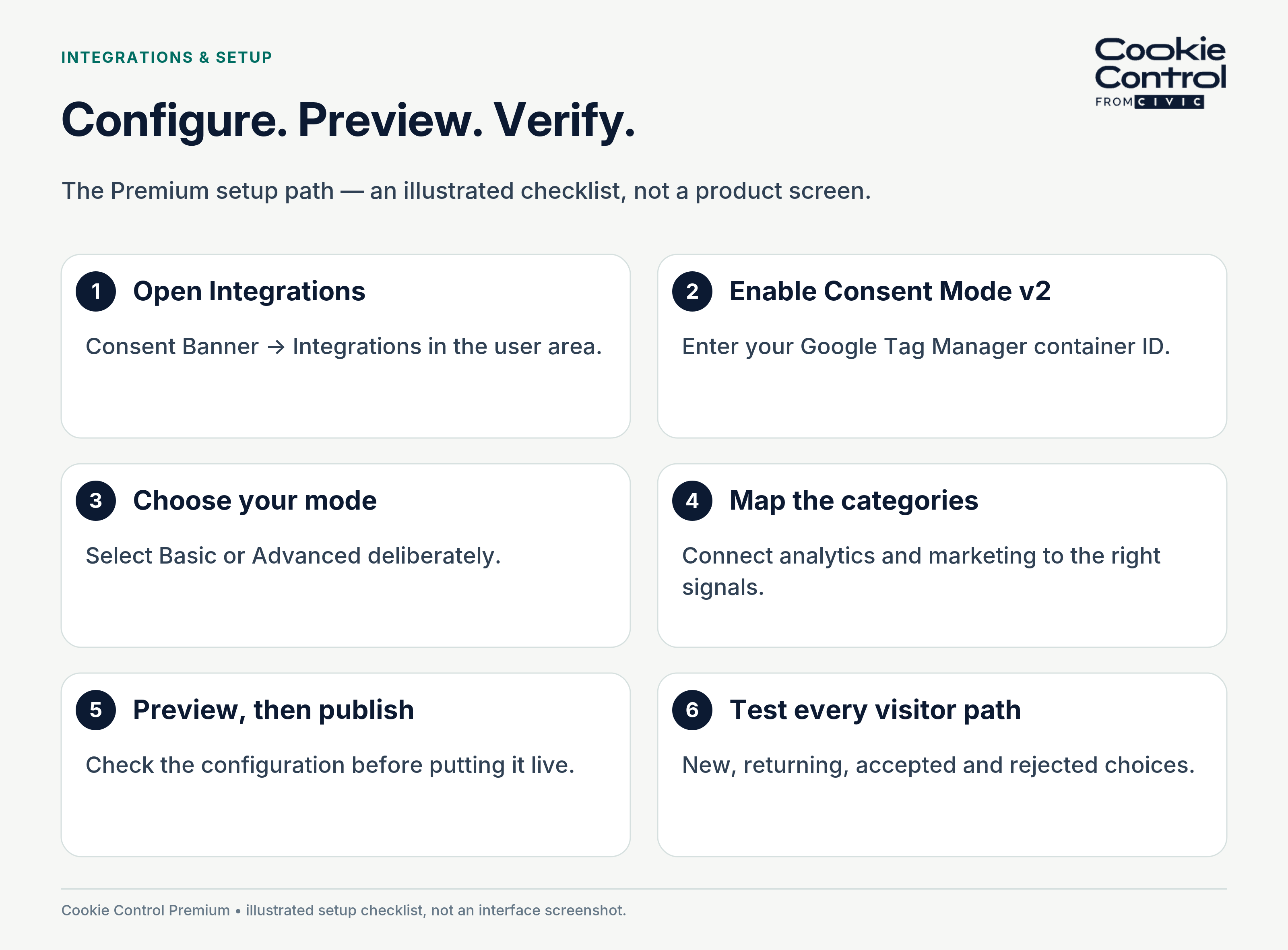
The Premium setup path: configure the integration, preview it and test new and returning visitor choices. Illustrated checklist, not an interface screenshot.
Setting it up on v9 with Google Tag Manager
On v9 you use our Google Tag Manager template. The template exposes the consent state to GTM, and your tags respond to it.
- Add the Cookie Control consent template to your GTM container from the template gallery, or import it from our documentation.
- Configure the template with your Cookie Control categories, so each maps to the right Google signal.
- Set the default consent state to denied for every signal except security_storage, and make sure the default fires before any Google tag.
- Choose Basic or Advanced. If you choose Basic, rewrite the triggers on your Google tags — in Basic mode they do not load until consent, so triggers that assumed they would load on page view need rebuilding. The documentation flags this specifically; budget time for it rather than discovering it at go-live.
- Publish the container and verify, as below.
Consent Mode is not script blocking. What handles the rest?
Consent Mode governs Google’s tags and nothing else. Everything else on the page — a Meta Pixel, a chat widget, an embedded video, a heat-mapping tool — needs a different mechanism: category-based script blocking, which stops a script loading until its category has been accepted. Cookie Control does both. They are separate systems doing separate jobs, and an audit that only checks the Google signals has only checked half the page.
The other two built-in integrations show how differently vendors behave. The Meta Pixel integration does not simply block the pixel: it is initialised on page load with consent set to revoke, events queue, and when the visitor accepts marketing the pending activity is sent. Queued and flushed, not blocked and then loaded. Cookie Control manages the six cookies involved — _fbp, _fbc, fr, datr, sb and wd — and blocks facebook.net until consent. The Microsoft Clarity integration is wired through Clarity’s own Consent v2 API and manages _clck, _clsk, MUID, CLID, ANONCHK, MR and SM. One Clarity detail to know: Clarity only applies consent mode automatically for visitors in the EEA, UK and Switzerland. For everyone else you have to turn cookies off in Clarity’s own settings, or it will set them regardless of what your banner says.
Basic or Advanced?
The choice determines what happens before someone consents.
- Basic — Google tags do not load until consent is given. Nothing is sent beforehand. Cleaner from a privacy standpoint, and you lose site-specific pre-consent measurement. Google Ads can still use a general conversion model.
- Advanced — tags load and send cookieless pings while consent is denied. Google can then model some of the behaviour you did not measure directly. More data, but tags are running before consent, which you should be comfortable defending.
There is no universally right answer. Basic prevents pre-consent Google requests; Advanced permits limited pre-consent data transmission. Assess the legal basis and the actual data sent, decide deliberately, and write down why. Neither mode is, by itself, a compliance guarantee.
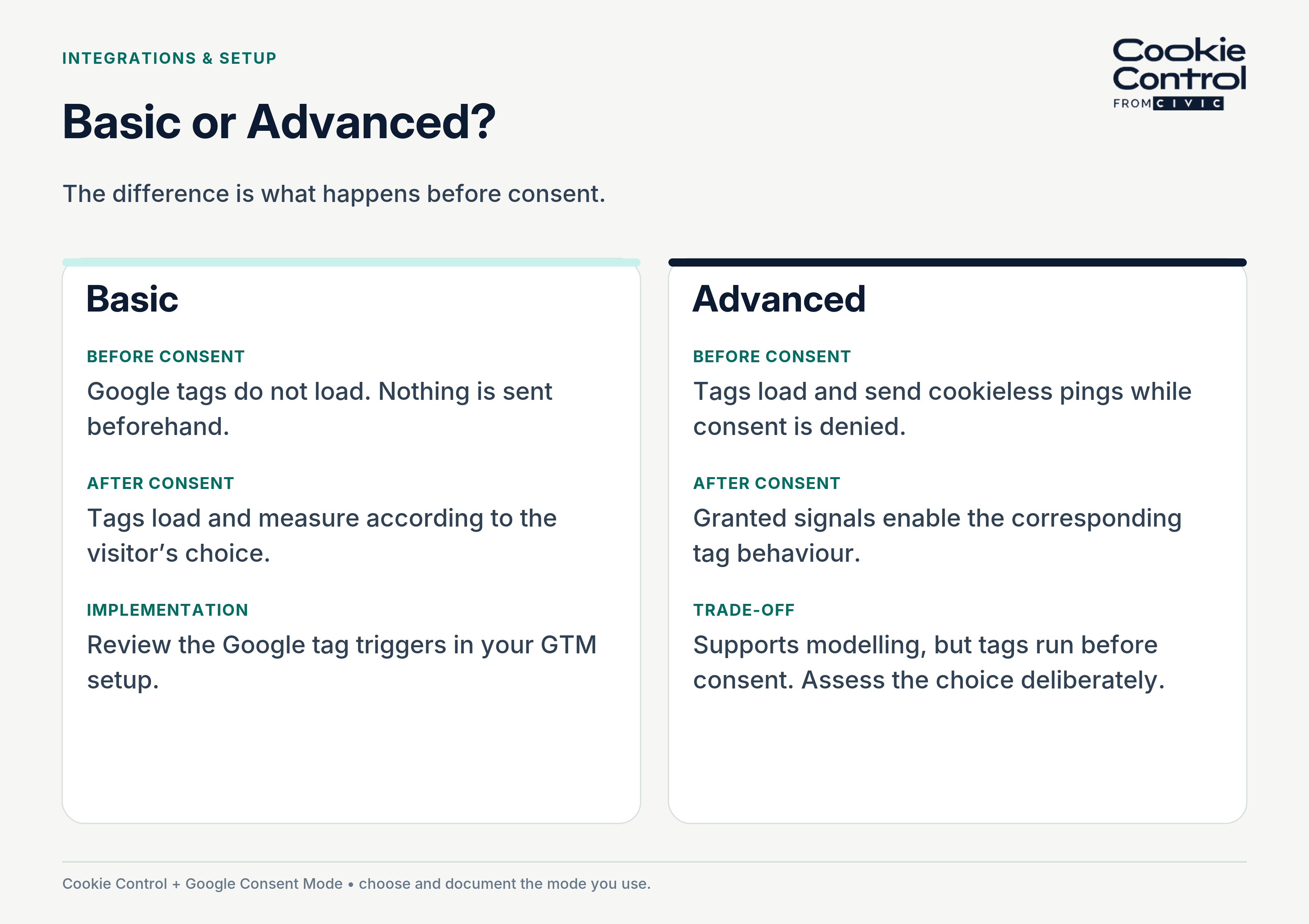
Before consent, Basic sends no Google data; Advanced can send cookieless pings. Document and assess the actual implementation.
Verifying it works
- Open your site in a private window with developer tools open.
- Before touching the banner, check the network panel for Google requests. In Advanced mode you should see cookieless pings; in Basic, nothing.
- Confirm the default consent state shows everything denied except security_storage.
- Accept the relevant categories, and confirm the update fires and their mapped signals change to granted.
- Reload as a returning visitor and confirm your stored choice is applied without re-prompting.
- Reject, reload, and confirm no advertising or analytics identifiers are stored
Google Tag Assistant will show consent state per tag, which is the fastest way to see whether your mapping is doing what you think.
The mistakes we see most often
- Defaults not explicitly configured. If a tag starts with an inappropriate granted state, it can behave as though consent was given. Initialise and verify the defaults before the tags they govern.
- Marketing mapped to ad_storage only. Consent Mode v2 requires ad_user_data and ad_personalization as well; a mapping that stops at the v1 signals is not v2.
- The default block firing after the tags it is meant to govern. It has to be the first thing Google sees on the page.
- Choosing Basic mode in GTM and not rewriting the triggers. In Basic mode tags do not load until consent, so triggers that assumed they would load on page view have to be rebuilt — the documentation flags this specifically.
- Testing only as a first-time visitor. The returning-visitor path — stored choice, read, applied — is where the two-second wait earns its keep and where most setups have never been checked.
- Assuming Consent Mode blocks non-Google tags. It signals; it does not block. The rest of the page still needs script blocking.
Why this matters more than it used to
Google has consolidated how consent controls its advertising data, and Consent Mode is now the mechanism that governs it. A misconfigured setup no longer just skews a report. It can quietly suppress remarketing audiences and conversion data across your advertising account. If you have not audited yours since 2025, it is worth an hour.
Where to go next: the plain-English guide to UK GDPR and PECR covers what the banner itself has to do; first-party versus third-party explains why the rest of the page needs blocking; and if the question is whether you need a banner at all, start with do you need a cookie banner.
Frequently asked questions
Sources
- Cookie Control documentation Premium Google Consent Mode v2 integration
- Cookie Control documentation v9 Google setup guide
- Cookie Control documentation v9 Optional categories
- Google Consent Mode developer documentation